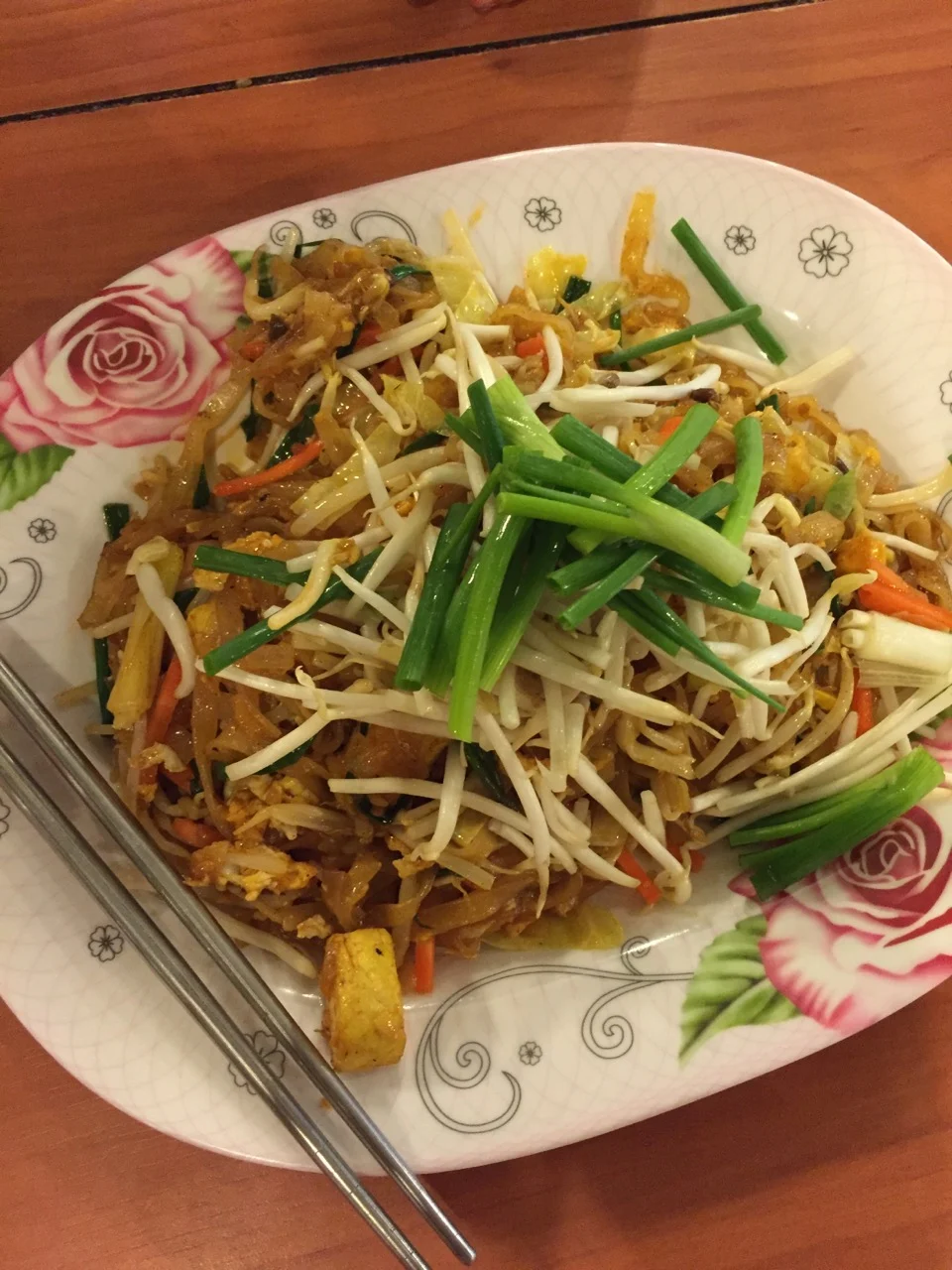
A note from Chefolio: we make an app that edits food photos. Chefolio is designed to change lighting and backgrounds, but an AI edit can also change the food. We label our edits and check them against the source.
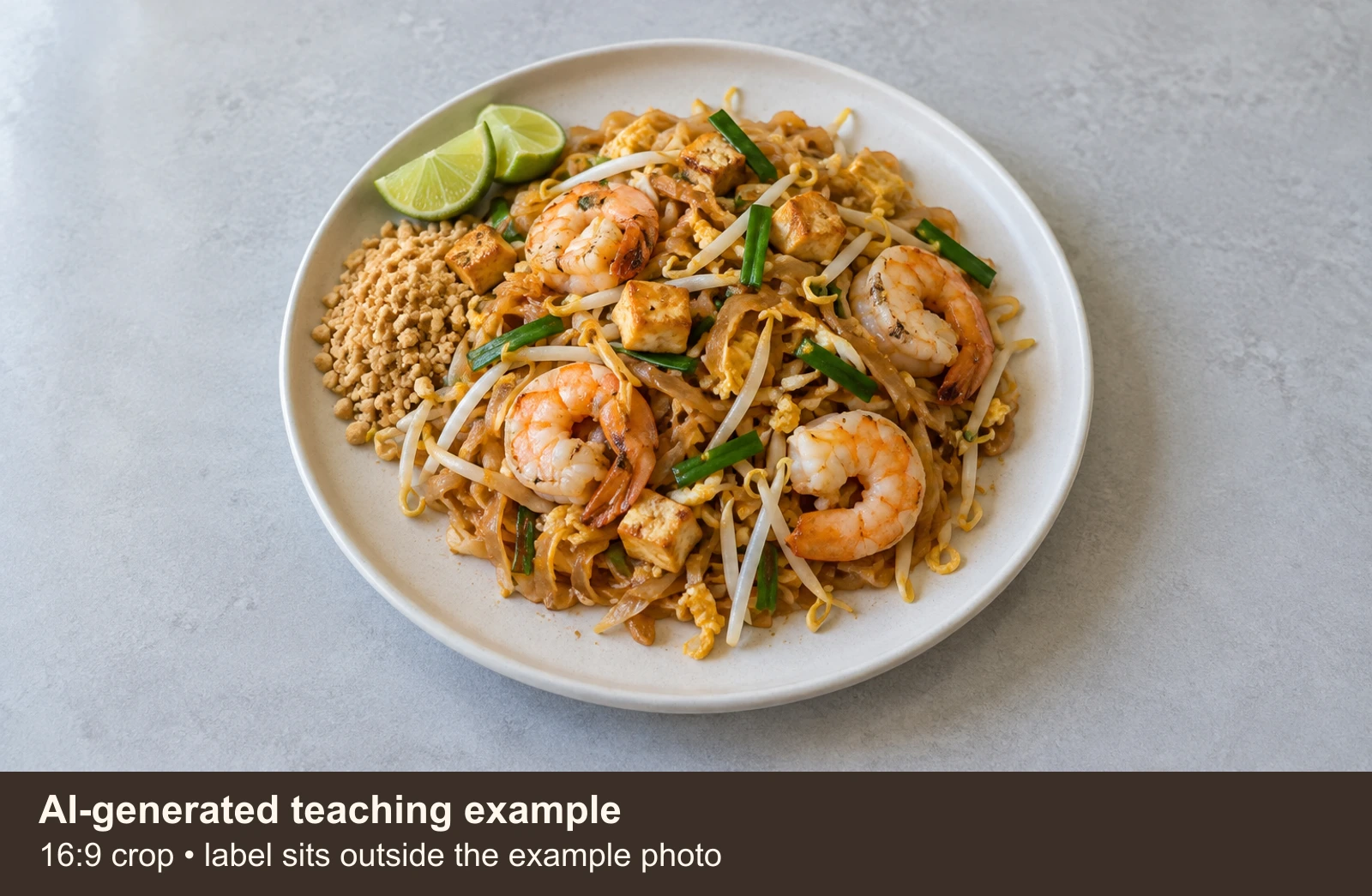
Teaching example edition: the three layouts below start from one AI-generated Pad Thai illustration. They show crop and text choices, not a real restaurant's dish, a Chefolio output or a platform-approved upload. The $16 price is an example.
A menu listing, a social post and a business profile each answer a different question, so one dish can need several photos. The delivery photo helps someone identify the item. The social post can announce a special. The business-profile photo helps someone recognize what the restaurant actually serves.
The delivery photo: make the item clear
Start with your own photograph of the portion you serve, a simple background and enough room around the plate. Keep promotional text separate from the photo. Check the current DoorDash photo guidance and the requirements in your merchant account before exporting; platforms can have different sizes and crops.
The teaching layout uses a 16:9 crop, with its AI label outside the example photo area. For a real listing, replace the illustration with your real dish and follow the platform's rules. This generated picture is not a substitute for that photograph.
The Instagram photo: room for an announcement
For a feed post, a 4:5 layout can leave room for a dish name or price. Put important text where it stays readable on a phone. If you change the setting with AI, check the food against the source and disclose the change.
A process clip serves another purpose: it can show the final garnish, the plating or the atmosphere. It does not have to look like the menu photo. Choose the format that explains the post, rather than forcing every post into one template.
The Google photo: keep it recognizable
Use a real photograph for your Google Business Profile. Keep edits modest and follow Google's photo guidance. Your image should represent the food and place a visitor will encounter.
The Google-style panel below only illustrates a simple crop and brightness adjustment of the same generated source. It is not an actual Google listing photo. A crop or global brightness change preserves the source scene; an AI scene rebuild can change its objects.
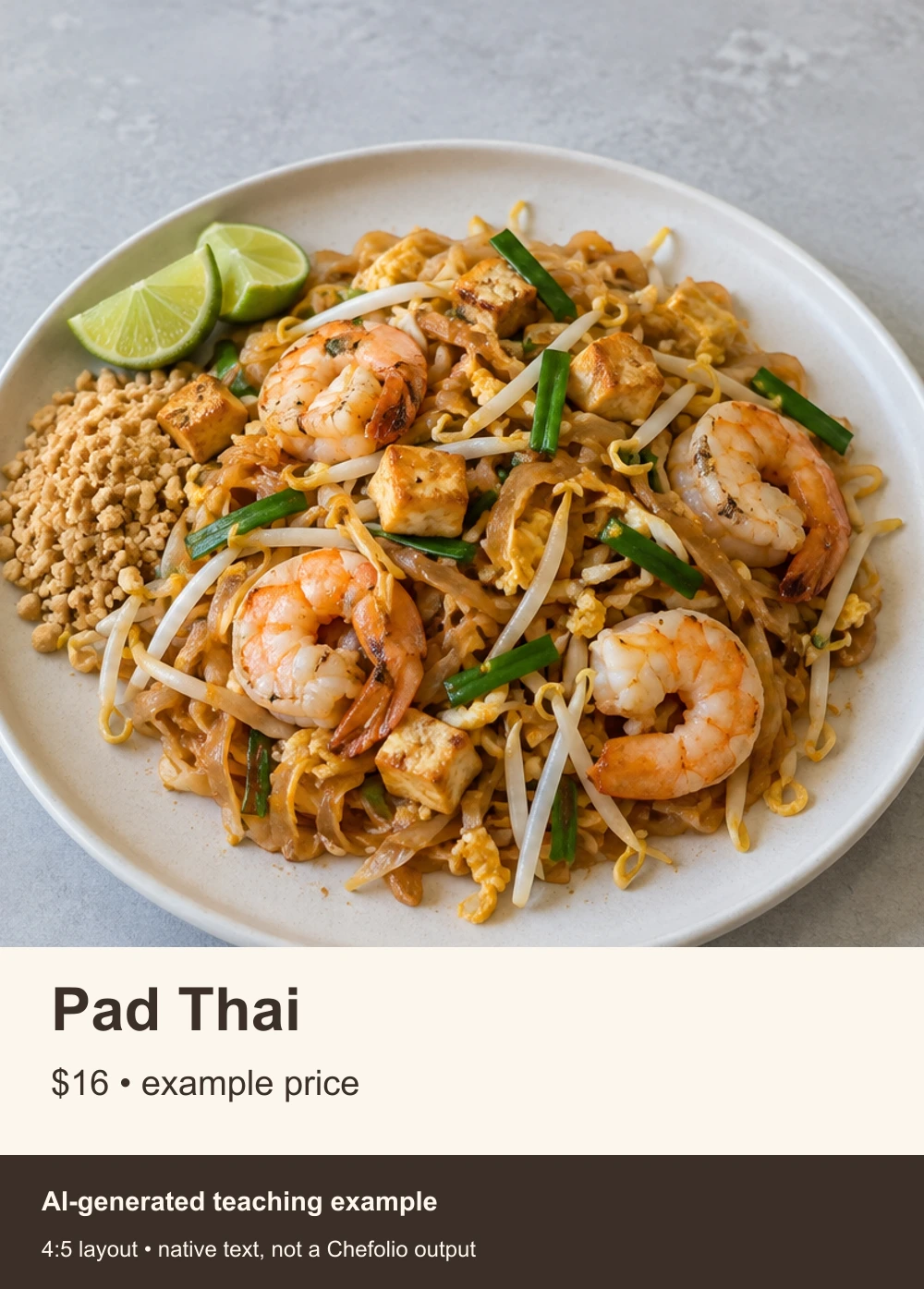
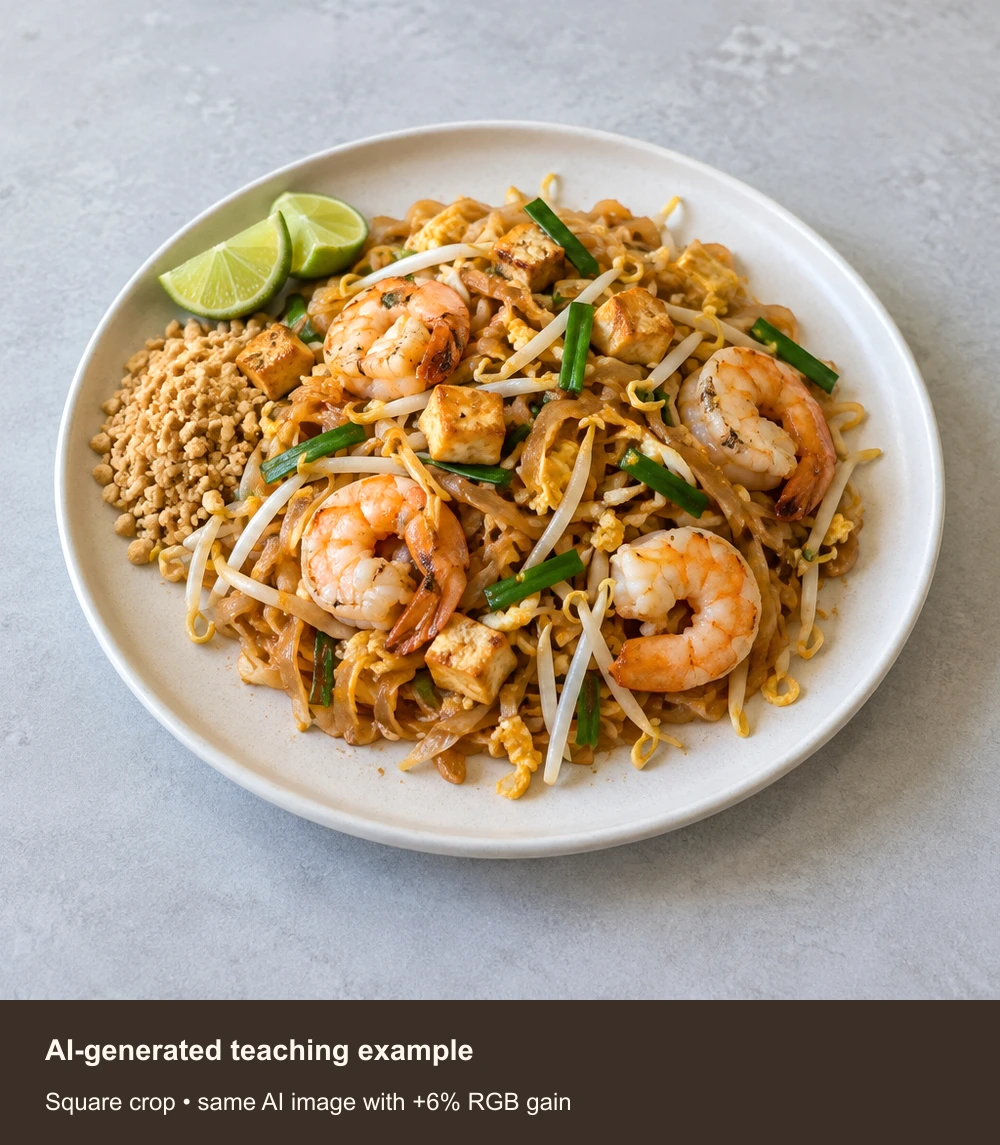
Three native layouts from one AI-generated source. Only the social layout adds promotional text. The square version uses a basic global adjustment, not AI restyling. None is a real product photo, Chefolio result or proof of platform acceptance.
One shoot, several useful files
When you photograph your own dish, make these files:
- A landscape frame with the whole plate and space around it. Keep the full-resolution original.
- A vertical frame from an angle that explains the food, with room for a caption if you need one.
- A short clip of the last plating step. Hold the phone steady and record a little before and after the action.
- Separate exports for each destination, with the crop and text checked at phone size.
For the short clip, film the dish you actually serve and keep the final plating step in view.
Destination | Starting layout | Text in the photo | Editing approach |
|---|---|---|---|
Delivery listing | Check that platform's required crop | Keep promotions separate | Your actual item; verify the listing rules |
Instagram announcement | 4:5 example | Dish name or price if useful | Check any scene edit and disclose it |
Google Business Profile | Crop from your own photograph | Usually unnecessary | Modest edits that represent the place and food |
Website or print | Match the layout | As useful | Keep the original and check output quality |
Where Chefolio fits
Chefolio can help prepare a styled version from a photo you took. Check the saved result against the source, especially ingredients, portion, garnish and extra background food. A matching crop does not prove the dish stayed unchanged.
For a 4:5 post, you may need to crop the exported file in your photo editor; the captured iPhone ratio menu does not include 4:5. Choose an output with room for that crop. Keep your original for channels where a real, lightly edited photograph is the appropriate choice.
Try the styled workflow with a photo of your own dish:

No comments yet