A note from Chefolio: we make an app that edits food photos. It's built to change the background and light around the food, not the food itself, and we label the photos we edit.
Each delivery app has its own photo rules, and they don't agree with each other. DoorDash wants wide landscape photos. Grubhub, by most accounts, displays squares. Skip, in Canada, wants a different landscape shape again. A photo that sails through on one app can get rejected on the next.
We rechecked the linked merchant help pages on October 2, 2026, and put the rules in one place. Grubhub's publicly available specifications remain incomplete. Platforms update these pages without much notice, so if something here doesn't match what your merchant portal says, trust the portal.
The rules at a glance
Requirement | DoorDash | Uber Eats | Grubhub | SkipTheDishes |
|---|---|---|---|---|
Shape | Landscape 16:9 only | 5:4 to 6:4 recommended | 1:1 working crop; confirm in your portal | Landscape 3:2 |
Minimum size | 1400 x 800 px | 550 px wide, 440 px tall | Not found publicly; confirm in your portal | 2100 x 1400 px |
Maximum size | 2 MB file | 10 MB file; up to 10,000 px per side | Not published | 6 MB file; up to 4000 x 4000 px |
File types | Not stated on the requirements page | JPG, PNG, GIF | Not published | JPG, PNG |
Text, logos, borders | Not allowed | Not allowed, except text printed on the food or packaging | Not published | Not stated |
What it must show | "The actual item served" | A single item from your menu | Not published | "The dish or item being sold" |
Sources: DoorDash, Uber Eats, SkipTheDishes. We couldn't verify a public Grubhub merchant photo specification. The square crop in this guide is a working example, not a confirmed upload requirement; check your Grubhub for Restaurants account before exporting.
Two notes on the table. DoorDash's rejection guide lists a 2 MB maximum near the top and 16 MB for item photos in a later summary on the same page. Keep files under 2 MB to meet both limits. Skip's linked guidance dates from 2022; confirm it against your merchant portal. If your photo isn't 3:2, Skip crops it automatically, which may cut off part of the dish.
DoorDash's rules in more detail
DoorDash is the strictest of the four, and its rejection list is a useful checklist for any platform. Among the reasons it gives (DoorDash):
- Vertical and square photos aren't accepted
- At least 80% of the item has to be in the frame; show the full item whenever possible
- The lighting should be bright and even, with no harsh shadows or blown-out highlights
- The background should be simple and not distracting
- No people, and hands only if they don't distract from the item
- The photo has to show exactly what comes with the menu item
- It has to be your own photo, not clip art or stock
- Every menu item needs its own photo
If the burger comes with fries, the fries belong in the burger photo. If the fries cost extra, don't include them as though they come with the burger. For a rejected photo, use the reason shown in your merchant portal and the checklist above to decide what to change.
Can you edit delivery photos?
This is where the platforms send mixed signals.
DoorDash's requirements page says photos "must be clean and unedited" and should appear "exactly as photographed, without added elements like extra text, graphics, or borders." But DoorDash's own photo editor, built into the merchant portal, offers auto-enhance, cropping, and new backgrounds, including branded ones (DoorDash). Uber Eats, for its part, now uses AI on its end to improve low-quality food photos, adjusting "lighting, resolution, framing, and plating" (Uber).
Our reading: the existence of those editors supports modest corrections, but doesn't guarantee approval for a third-party AI edit. Keep the actual food and portion accurate, and leave added text, graphics, and borders off DoorDash and Uber Eats item images. Grubhub told 404 Media in 2024 that it did not allow AI-generated images and would remove them; confirm today's rules in your merchant account (404 Media).
If you're unsure about a particular edit on DoorDash, the safest route is to make it in DoorDash's own editor.
One photo, four crops
You don't need four separate photo shoots. You need one photo with room around the dish.
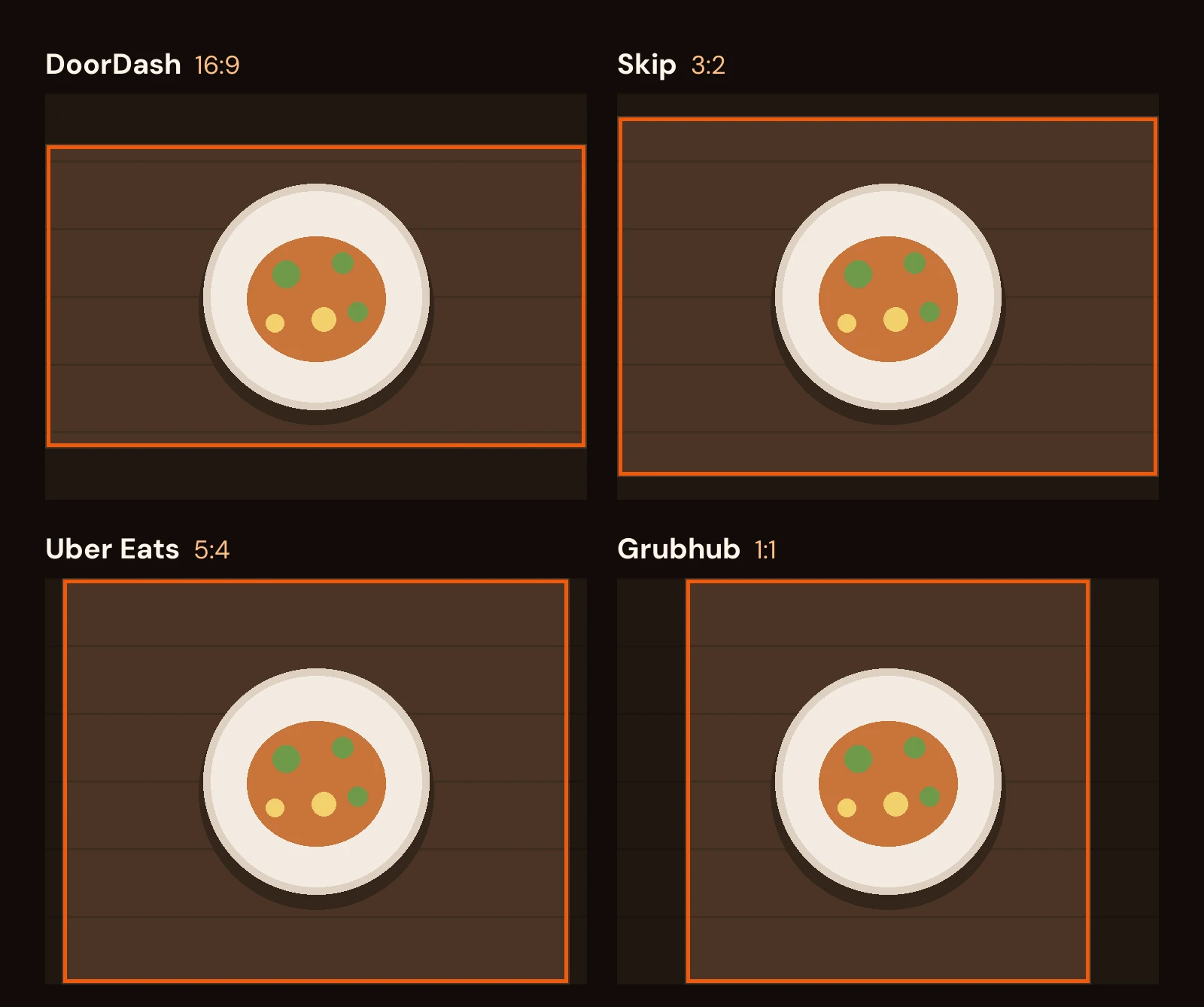
Shoot in landscape at your phone's full resolution, with the dish centered and some empty space on every side. A typical 12-megapixel phone photo is 4032 x 3024 pixels, enough for the published minimum dimensions above. Confirm Grubhub's current upload limits in your account:
For | Crop to | Largest crop from a 4032 x 3024 photo |
|---|---|---|
DoorDash | 16:9 | 4032 x 2268 |
Skip | 3:2 | 4032 x 2688 |
Uber Eats | 5:4 | 3780 x 3024 |
Grubhub | 1:1 | 3024 x 3024 |
Because the dish is centered with margin, each crop keeps all of it. Two platforms need a resize after cropping. For DoorDash, save the 16:9 crop at around 1920 x 1080 so the file lands under 2 MB; that's still well above the 1400 x 800 minimum. For Skip, the 3:2 crop comes out 4032 pixels wide, just over its 4000-pixel limit, so resize it to something like 3000 x 2000.
The mistake to avoid is shooting tight. A dish that fills a square frame edge to edge has nothing left to spare when you crop it to 16:9, and you'll end up cutting off the rim of the plate or the side of the burger.
Keep the text for your other channels
DoorDash and Uber Eats don't allow text on item photos, and Skip and Grubhub don't publish a rule either way. Leave it off for all four. Save the dish name and price for Instagram, Facebook, your website, and your printed menu, where they're useful.
Where Chefolio fits
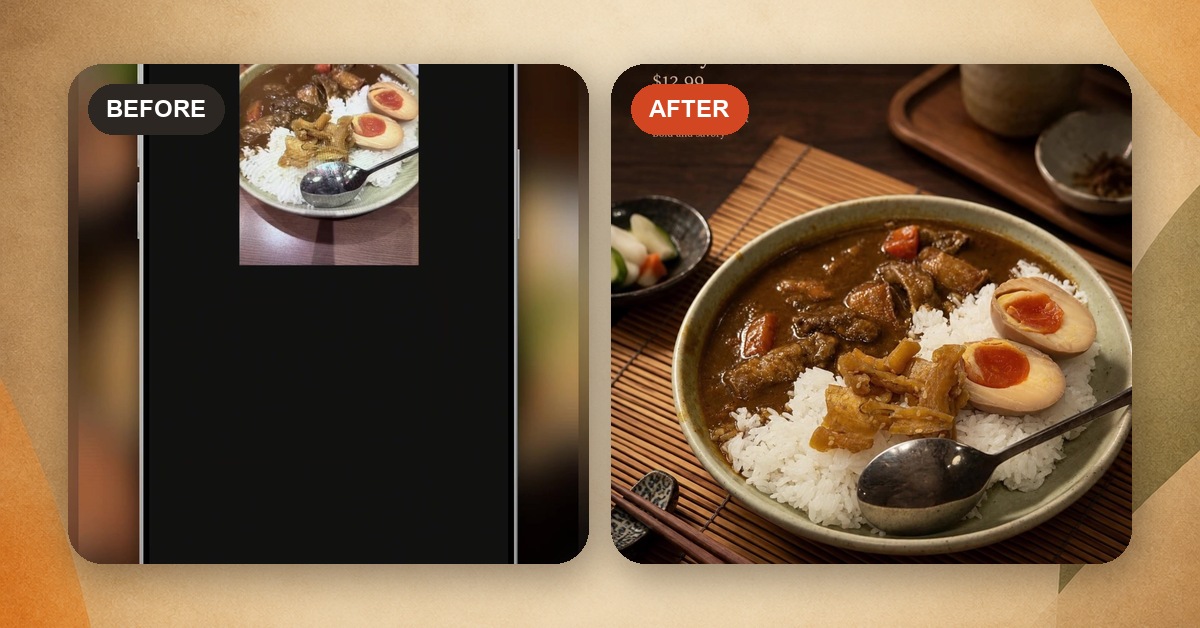
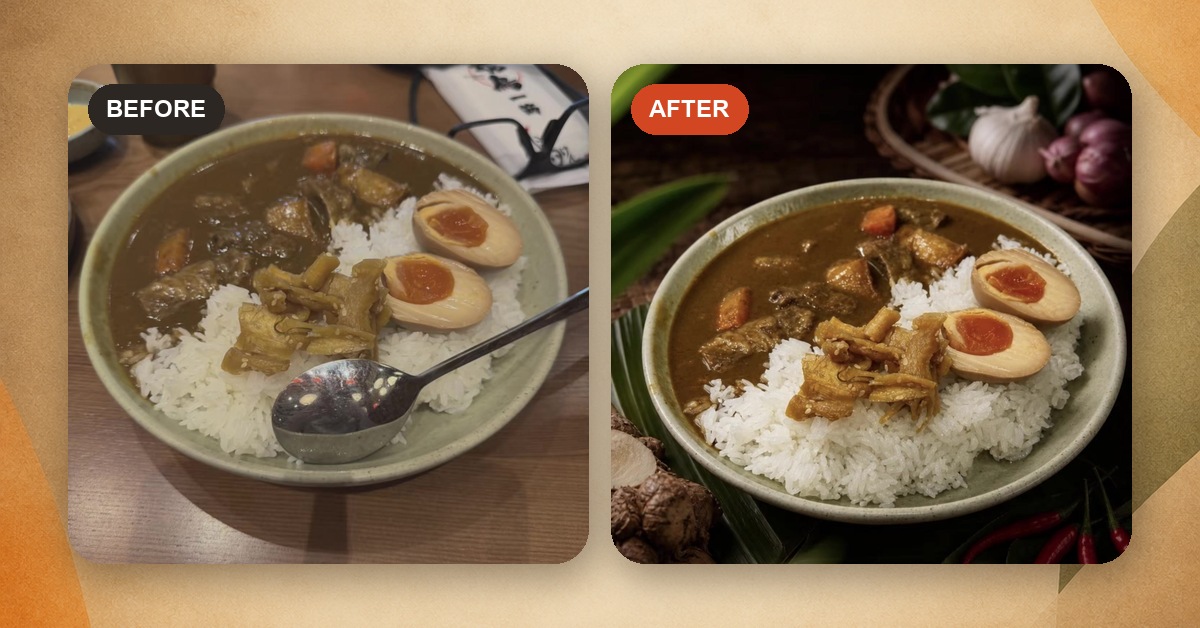
Chefolio can clean up the background and light on a phone photo so it meets the "simple background, bright even light" part of the rules. For delivery apps, export the version without the name and price, since that text would get the photo rejected. Check that the export's shape matches the platform you're uploading to; if the ratio you need isn't in the export options, save the largest size and crop it in your phone's photo editor.
Before you upload anything, compare it to the original and make sure the portion, sides, and garnish are exactly what a customer will receive. You can try the same review on one of your menu photos with Chefolio.
Create your food photo · Download for iPhone
The iPhone app requires iOS 26 or later. The web app works in a modern browser.
No comments yet