A note from Chefolio: we make an app that edits food photos. Chefolio is designed to change lighting and backgrounds, but an AI edit can also change the food. We label our edits and check them against the source.
Teaching example edition: sample layouts use labelled AI imagery or explicitly labelled AI edits. Example prices, dates and offer details are fictional; they are not offers from a food business.
If your inbox is full of "hi, how much for a dozen?", your price list isn't doing its job. Usually that's because it's a wall of text, or a PDF nobody opens on a phone, or it lives in a Story that expired two weeks ago.
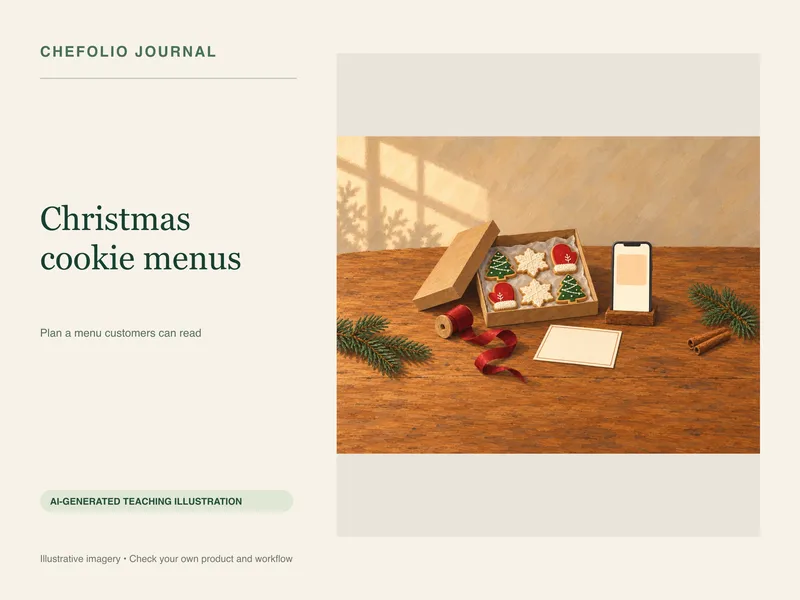
A price list with photos puts the product, portion and price in one place, so customers can pick a set and go straight to your order form. Here's how to make one that holds up.
Pick a format
Two useful formats are a one-page menu and a single-item card.
The one-page menu puts every item on a single image, each with a photo, a name, and a price. It's the thing you pin to the top of your profile and save to a "Menu" Highlight, and it's the image people screenshot and text to a friend.
The single-item card is a single photo with one name and one price on it. Post several as a carousel, share one in Stories when you want to push a particular set, or bring one back as a "back in stock" post.
Make the cards first. You can build the one-page menu from the same photos afterward.
A layout you can copy
Keep the structure plain so the cookies can be the interesting part:
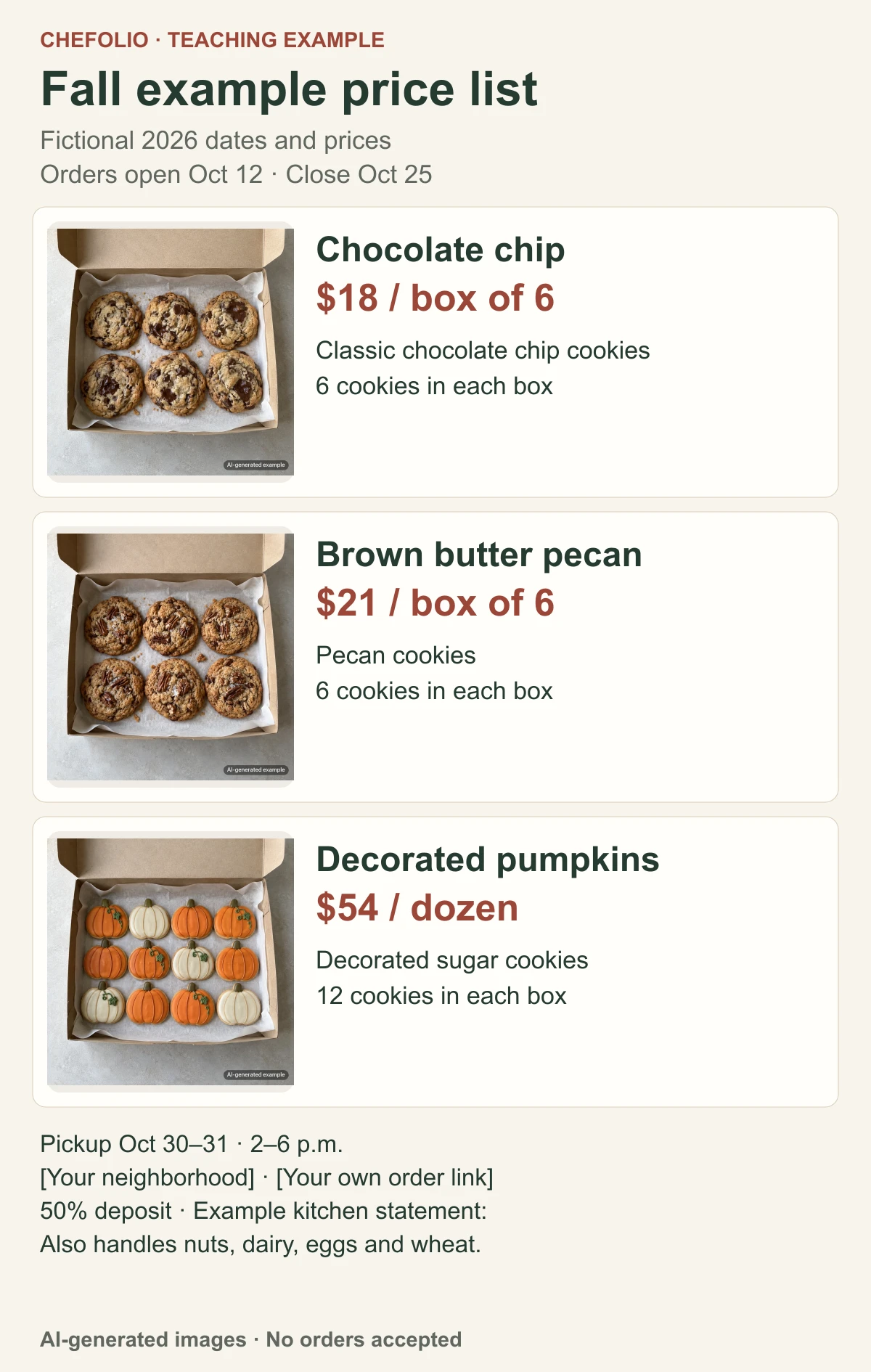
[Bakery name] · Fall menu · Orders open Oct 12, close Oct 25

[photo]  Classic chocolate chip    Box of 6    $18
[photo]  Brown butter pecan        Box of 6    $21
[photo]  Decorated pumpkin set     Dozen       $54

Pickup: Oct 30 and 31, 2 to 6 p.m., near Main St.
Order at: [link] · 50% deposit holds your order
Made in a home kitchen that also uses nuts, dairy, eggs, and wheat.
Some of those lines do more work than they appear to. The count next to each price ("Box of 6") heads off "is that per cookie?" The dates at the top answer "can I still order?" And the order link means nobody has to ask how.
A template in your usual layout editor can handle the spacing. It can't fix a weak photo, though, so start with clear shots that show the portion and the design.
Shoot for the price list, not the feed
Photos that look great as a single post don't always work in a grid.
Shoot every item on the same backdrop, from the same angle, in the same light. When the photos match, the menu looks planned. When one set sits on a marble board and the next one is on your countertop, it reads as a collage.
Leave space around the cookies. You'll need room for a name and price, and you'll almost always crop tighter than you planned.
Shoot each item on its own, even if you also take a group shot. Single-item photos are the ones you'll reuse for cards, Stories, and next season's menu.
Think about the size people will see. On a one-page menu, each photo might be the size of a postage stamp on a phone screen. Busy backgrounds and fine details disappear at that size, so a clean background matters more here than anywhere else.
Putting the price on the photo
Three rules cover most of it.
Don't cover the cookie. Put the text in the empty space, usually the top or bottom third of the frame.
Make it readable at phone size: big, plain type with enough contrast against the background. Script fonts look lovely until someone has to read "$54" in one.
Write the price the way people think about it, like "$54 / dozen" or "Box of 6, $18." Avoid "starting at" unless you also say what the starting price gets them.
Add the text in your layout editor or your phone's markup tool. Type the name, count and price rather than asking an image generator to draw them. Repeat them in your caption as well, so they are searchable and available to screen readers.
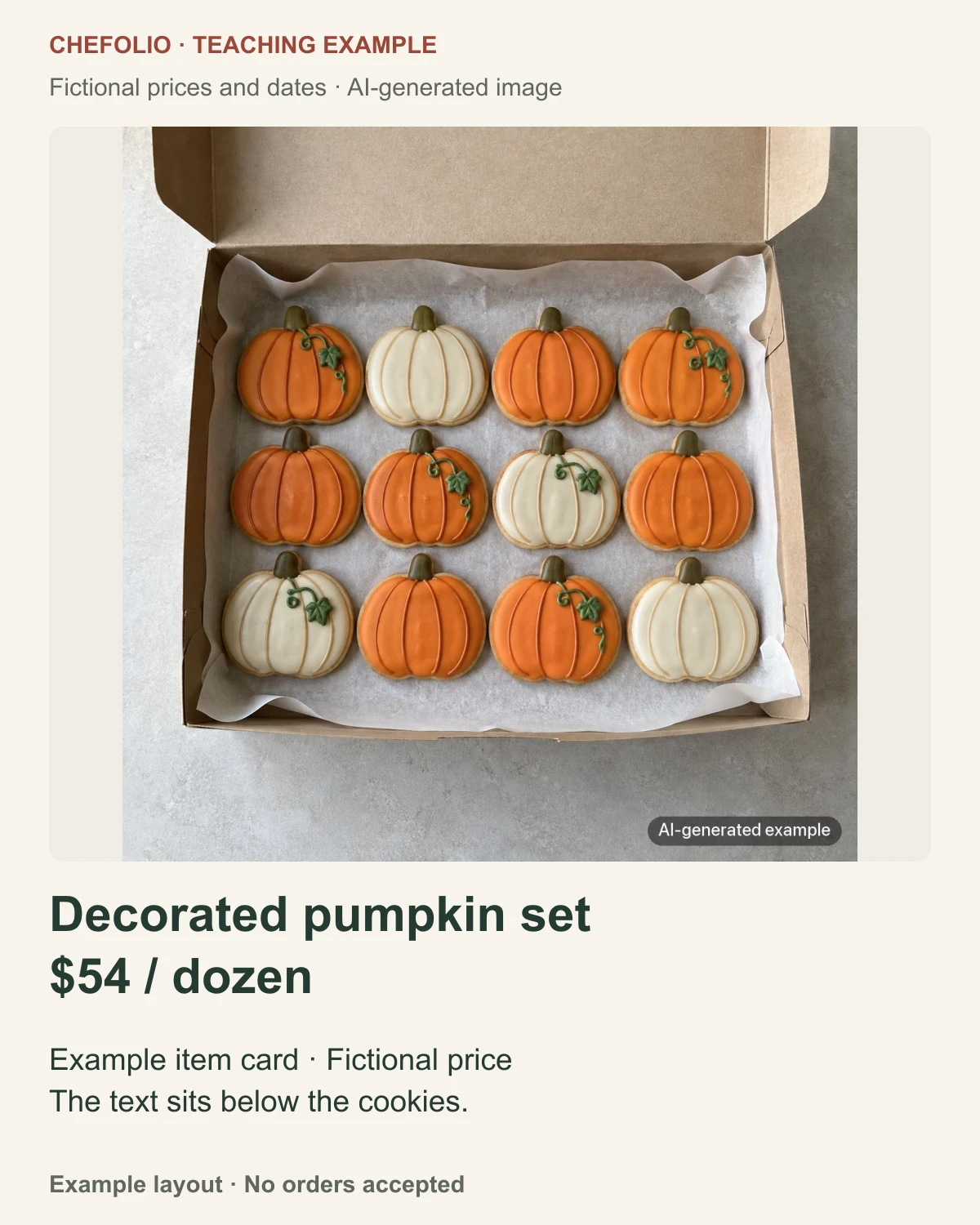
In the sample card, "Decorated pumpkin set · $54 / dozen" sits below the image. In your own card, check the design at phone size before exporting; the cookie should remain fully visible.
Keep the prices from going stale
The most common price list problem has nothing to do with design. It's an old image still pinned after the prices changed. A customer orders off the old one, and now you're having an awkward conversation at pickup.
When you change a price, change it in three places on the same day: the image, the caption, and your order form, whether that's Hotplate, Square, a Google Form, or something else. Then archive the old image, including the copy in your Highlights.
Where Chefolio fits
Use this sequence for an actual item:
- Save the original photograph before editing.
- Upload it to Chefolio and choose a setting suited to your menu. Compare the returned image with the original: check the cookie count, outline, piping and colors. If any of those changed, use the original or request another version.
- Add the verified item name, portion and price in your layout tool, keeping the text outside the food. Export a text-free image and a finished card.
The steps here are written out rather than shown as a three-stage app demo. The example menu and card above use AI-generated images; they do not show a measured improvement to a real bakery photograph. If you use an AI scene edit, disclose it.
Start with one item from your current list. If it looks right, run the rest of the menu through the same style so everything matches:

No comments yet