A note from Chefolio: we make an app that edits food photos. Chefolio is designed to change lighting and backgrounds, but an AI edit can also change the food. We label our edits and check them against the source.
Teaching example edition: sample layouts use labelled AI imagery or explicitly labelled AI edits. Example prices, dates and offer details are fictional; they are not offers from a food business.
A cookie drop is a short, fixed preorder window: a small menu, an opening time, a closing time, and set pickup days. It works for home bakers for two reasons. Customers get a date to remember, and you get a cap on how many cookies you're signing up to decorate.
The practical aim is simple: one date, one menu, one way to order. Here's a sample announcement sequence you can adapt.
The countdown
This example uses a Christmas drop with orders opening on Thursday, November 12. Shift the dates to match your own.
When | Post | What it's for |
|---|---|---|
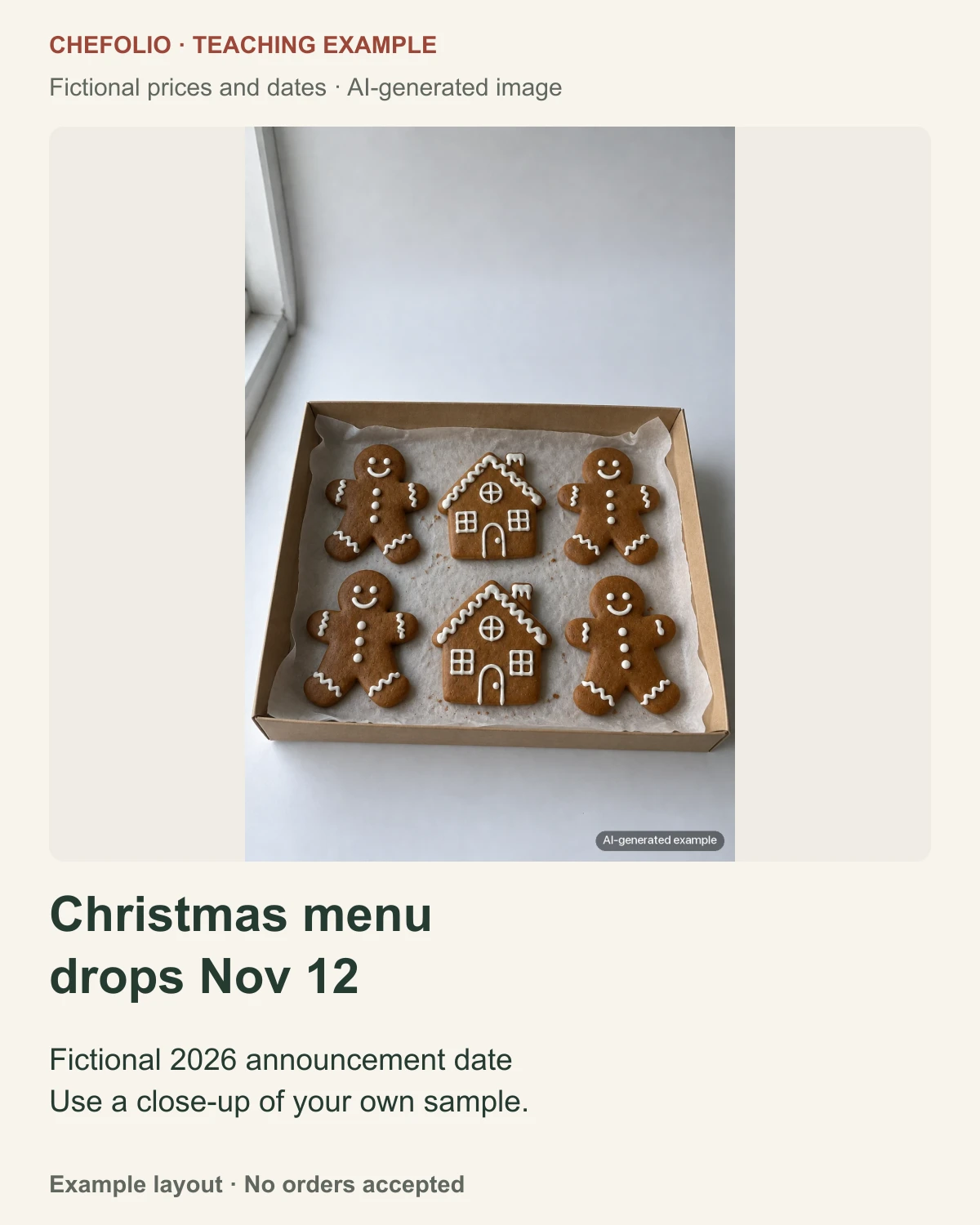
Nov 2 | Teaser | "Christmas menu drops Nov 12" with a close-up of one cookie |
Nov 8 or 9 | Menu reveal | The full menu with prices, pinned to your profile |
Nov 11 | Reminder | A Story with a countdown sticker people can tap to get reminded |
Nov 12 | Orders open | A Story with a link sticker, plus a feed post |
Nov 13 onward | Updates | Honest updates as sets sell out |
24 hours before close | Last call | One post and one Story |
After close | Closed | "Orders closed, thank you," plus the pickup details |
The sequence reuses the same few photos. For the reminder, prepare the background graphic first, then add a reminder or countdown with the controls available in your Instagram account. Check its date, time and time zone before posting.
The photos you need
Take them all in one session, ideally the same afternoon you shoot the menu:
- A tight close-up of your best cookie for the teaser. Keep it a little mysterious.
- The full menu image with every set and price.
- One photo per set, for the carousel and for "this one's almost gone" updates.
- A flat lay of the whole lineup, for the orders-open post.
- A shot of the packaging, if you box or bag them nicely, for pickup reminders.
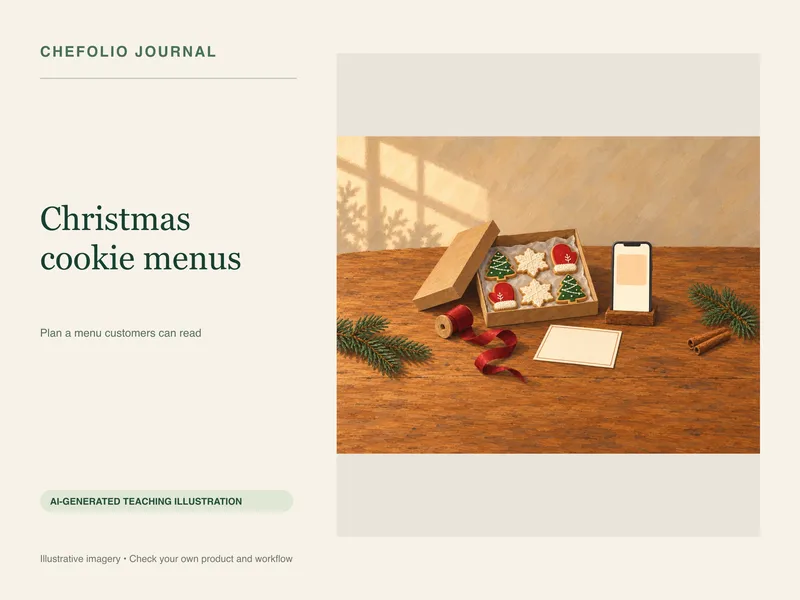
If you haven't planned the menu yet, our Christmas cookie menu guide covers the lineup, the pricing layout, and the photo session.
Captions you can adapt
For the teaser:
Christmas cookies are coming. 🎄
Menu drops Thursday, Nov 12 at 7 p.m.
Turn on post notifications so you don't miss it.
Pickup Dec 18 to 23 in [neighborhood].
For the menu reveal:
Here's the Christmas menu!
Box of 6 · $24
Box of 12 · $45
Gingerbread set · $30
Orders open Thursday, Nov 12 at 7 p.m. through the link in my bio.
Pickup Dec 18 to 23 in [neighborhood]. Limited boxes this year.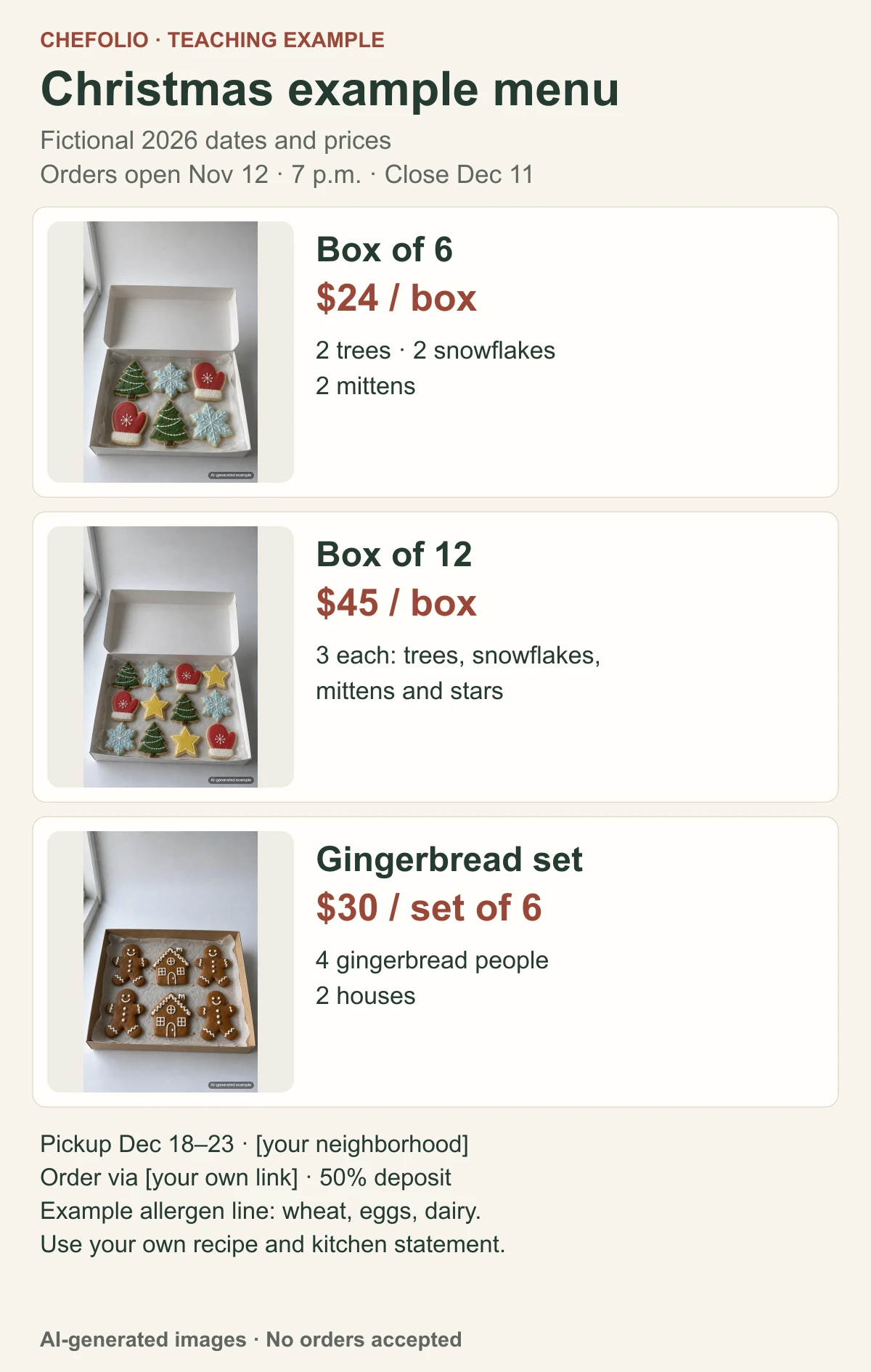
For the last call:
Last call for Christmas cookies. Orders close tomorrow (Dec 11) at 9 p.m.
Link in bio. Thank you for making this my busiest December yet.
Swap in your own voice, obviously. And only write "busiest December yet" if it's true.
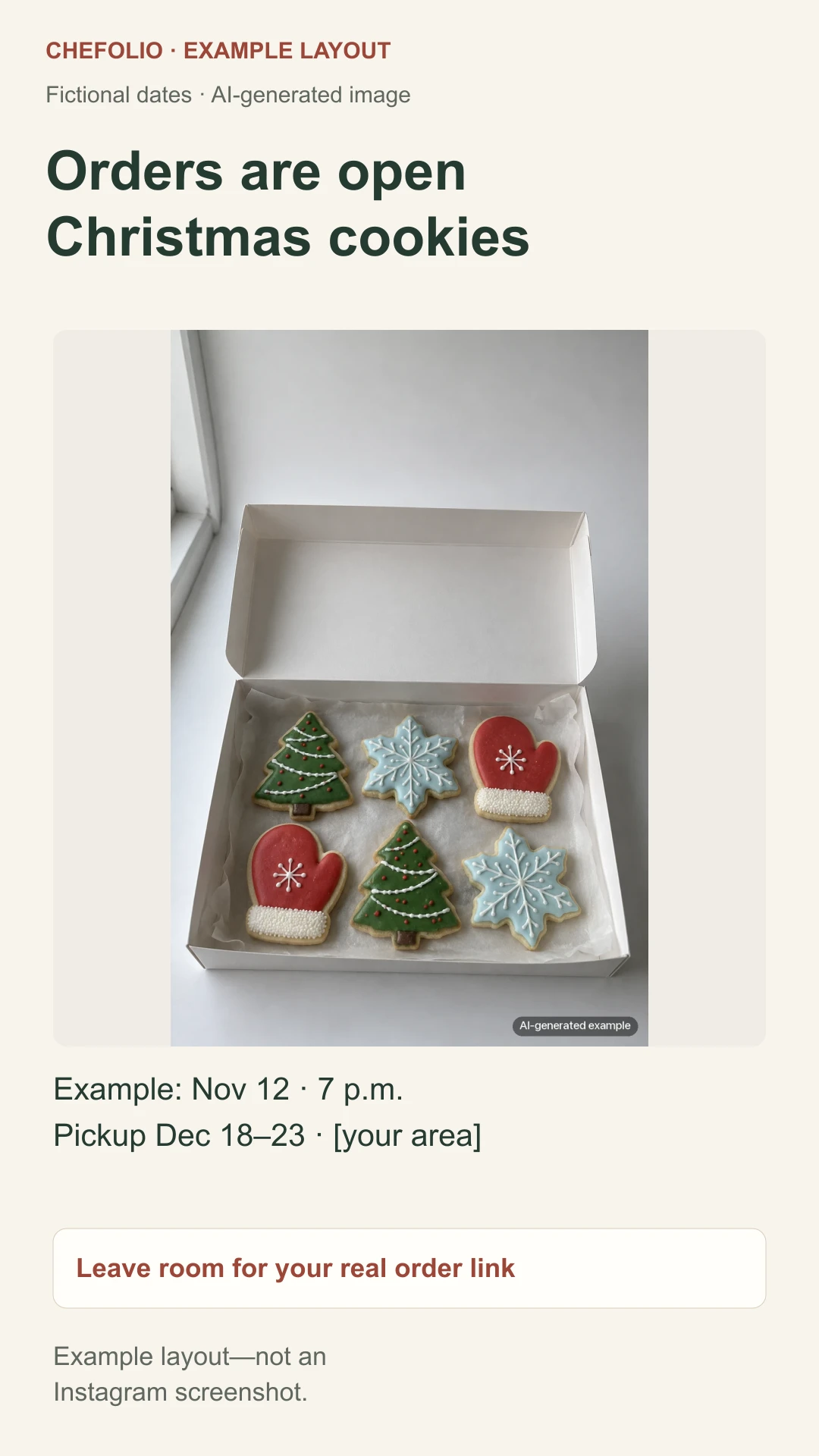
When making your own Story, upload your layout, add your actual order URL with Instagram's link control, then preview the result. Keep the deadline and pickup line readable around that control. The reserved area in the example is a design instruction, not a working link.
A few things that save headaches
Use one order link: the ordering page or form you already use. Put it in your bio and in the Stories where customers can order. If you don't take orders by DM, say so in the menu post.
Keep the urgency honest. "12 boxes left" works only when it's true. If people catch you inventing scarcity, they stop believing the real sellouts.
Make your pickup area clear. Include the city or neighborhood in your caption so local customers can tell whether the drop is relevant to them.
Type the prices into the caption too. People search their messages for prices, and screen readers can't read a picture.
Where Chefolio fits
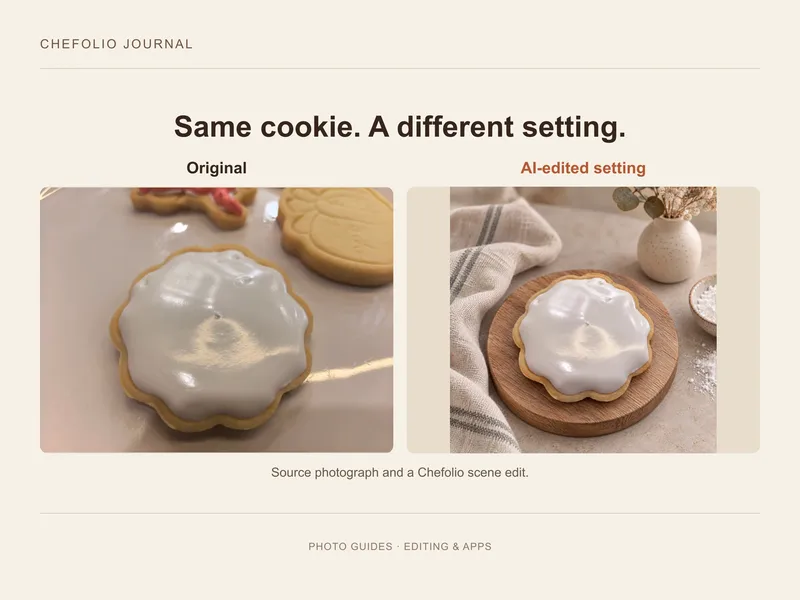
If you want to try a cleaner setting for your own sample photographs, upload one to Chefolio, choose a suitable style and compare the output with the original. Only build your teaser, menu and set cards from images that still match your products. Add the announcement text in your layout tool and save separate feed and portrait versions.
Compare each result with your original before you post, and add a short note such as "Background digitally edited" when it accurately describes the result. To try it on your drop photos:

No comments yet