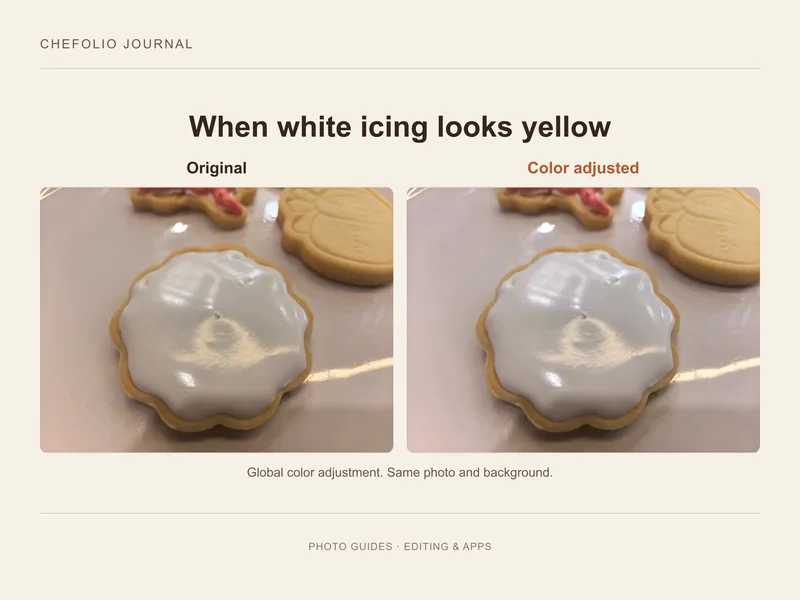
A note from Chefolio: we make an app that edits food photos. Chefolio is designed to change lighting and backgrounds, but an AI edit can also change the food. We label our edits and check them against the source.
Teaching examples: AI-generated setups and comparisons below illustrate the ideas. They are not records of physical photography tests, and their food details may differ between panels.
You flooded those cookies in bright white royal icing. On your phone, they're the color of old piano keys. It happens to nearly everyone who photographs baked goods at home, and it's almost never the icing.
Is it the photo or the icing?
Check this first, because sometimes it really is the icing. Butter, vanilla extract, and some meringue powders can tint white icing slightly ivory.
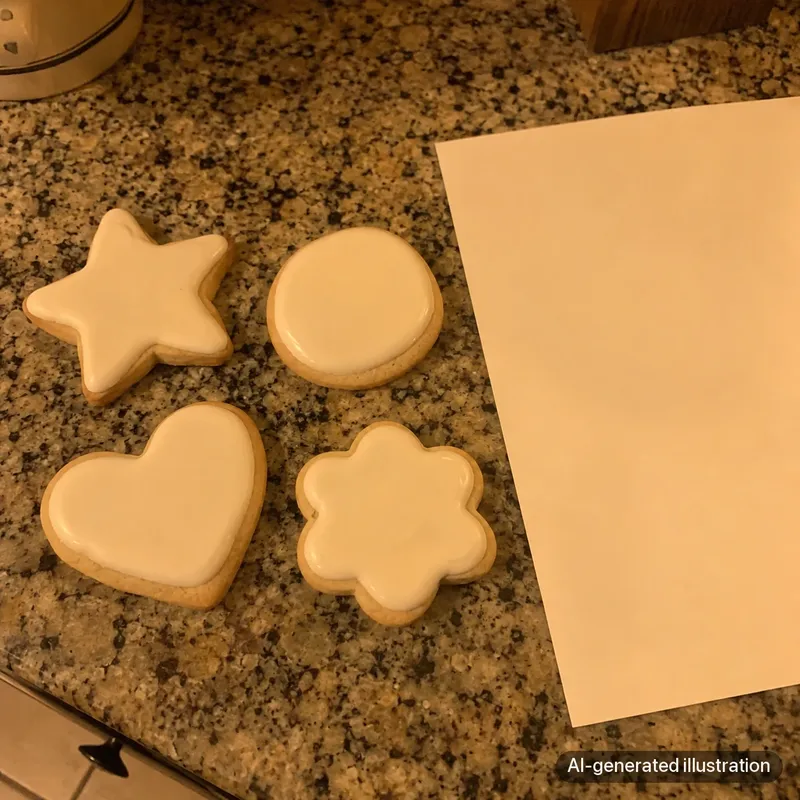
Hold a plain sheet of paper next to the cookie under the same light. If both look yellow in the photo, that's a clue the cast comes from the lighting or white balance, not the icing. Before changing the icing's color, compare the real icing in neutral-looking daylight. Paper is a rough reference, not a certified neutral target, and naturally ivory icing should stay ivory.
Why the light turns things yellow
Light comes in different colors, measured in Kelvin. Most household bulbs sit around 2700 to 3000K, which is warm and yellow. Daylight is closer to 5000 to 6500K, which is neutral to slightly blue.
Your phone tries to correct for this automatically. It guesses what should be white and shifts the colors to match. In a kitchen full of warm bulbs, it usually guesses partway and stops, which leaves everything a little yellow.
Mixed light makes it worse. With daylight from the window on one side and a warm bulb on the other, there's no single correction that works. One side of the cookie comes out blue and the other comes out yellow.
Colored walls and cabinets add to it. A butter-yellow kitchen wall bounces yellow light onto everything near it.
Prevent it while you shoot
- Turn off the kitchen lights and shoot by a window, so there's only one kind of light
- At night, use one daylight-balanced lamp (around 5000K) instead of the overhead lights, as in our night photo setup
- Move away from strongly colored walls, or block them with a white board
- Take one frame with a sheet of white paper in the shot. It gives you a reference to correct against later
Fix it afterward
Many phone editors have controls for overall color casts. A known neutral reference helps, but choose it carefully: the icing itself may be ivory, and paper can have its own tint. Avoid using a clipped white highlight as the reference.
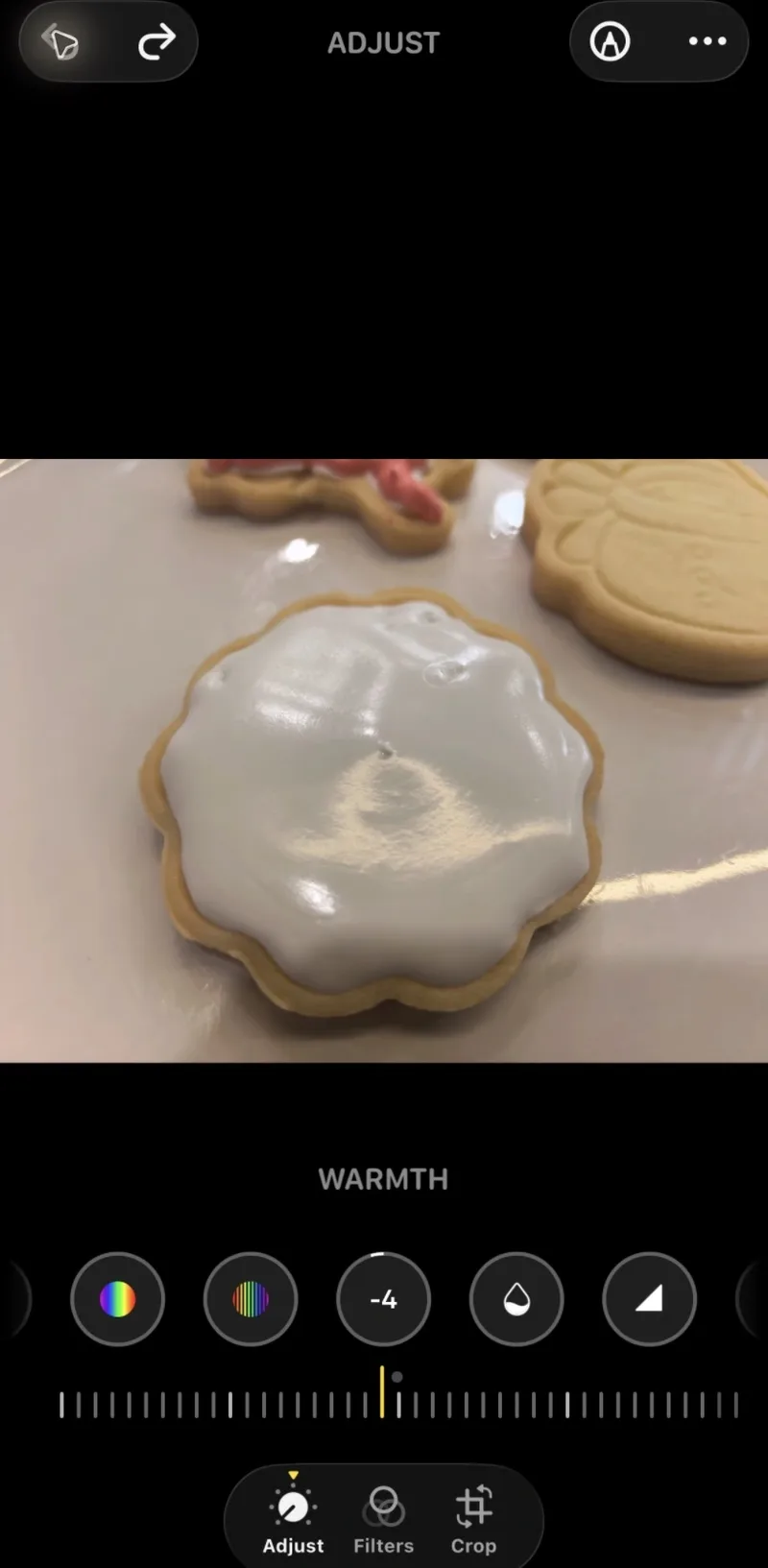
In the iPhone Photos app, tap Edit, then Adjust, and find Warmth. Move it toward blue a little at a time while comparing the icing with the real cookie. If there is a green or magenta cast, check Tint too. Stop before cream-colored icing turns artificially blue or white.
In Lightroom mobile, open the photo, find Color and White Balance, then select the eyedropper if it is available in your version. Sample a known neutral, unclipped area and compare the whole photo afterward. This guide doesn't include a Lightroom screenshot or a tested correction.
In Snapseed, go to Tools > White Balance, then use the eyedropper if your version offers it. Sample a known neutral area and check the colored icing afterward. This guide doesn't include a Snapseed screenshot or a tested correction.
In Google Photos, tap Edit, then Adjust, and use Warmth and Tint.
Whichever you use, look at the colored icing after you fix the whites. A correction that makes the white perfect can push pinks toward purple or turn mint slightly gray. Compare with the real cookie in daylight, and meet somewhere in the middle if you have to. Accurate beats perfect.
When it can't be fixed
A single cast is easy to fix. Mixed casts, yellow on one side and blue on the other, often aren't, because any correction that fixes one side ruins the other. The same goes for a photo that was too dark to begin with: correcting the color on a dark, grainy photo just gives you a dark, grainy photo in better colors.
If you still have the cookies, reshoot by a window. If they're gone, Chefolio can generate a newly lit scene around the food. Treat that as an AI scene edit, not a measured white-balance correction. Compare the icing color, surface details and outline with the source, and reject a version that misrepresents the cookies. Mention the edit in your caption when you post.
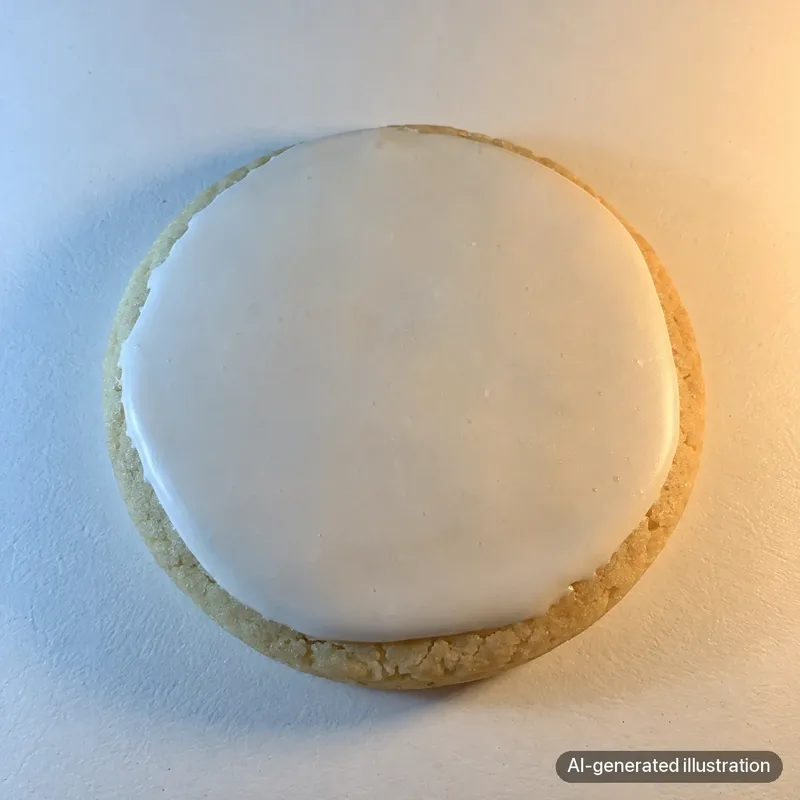
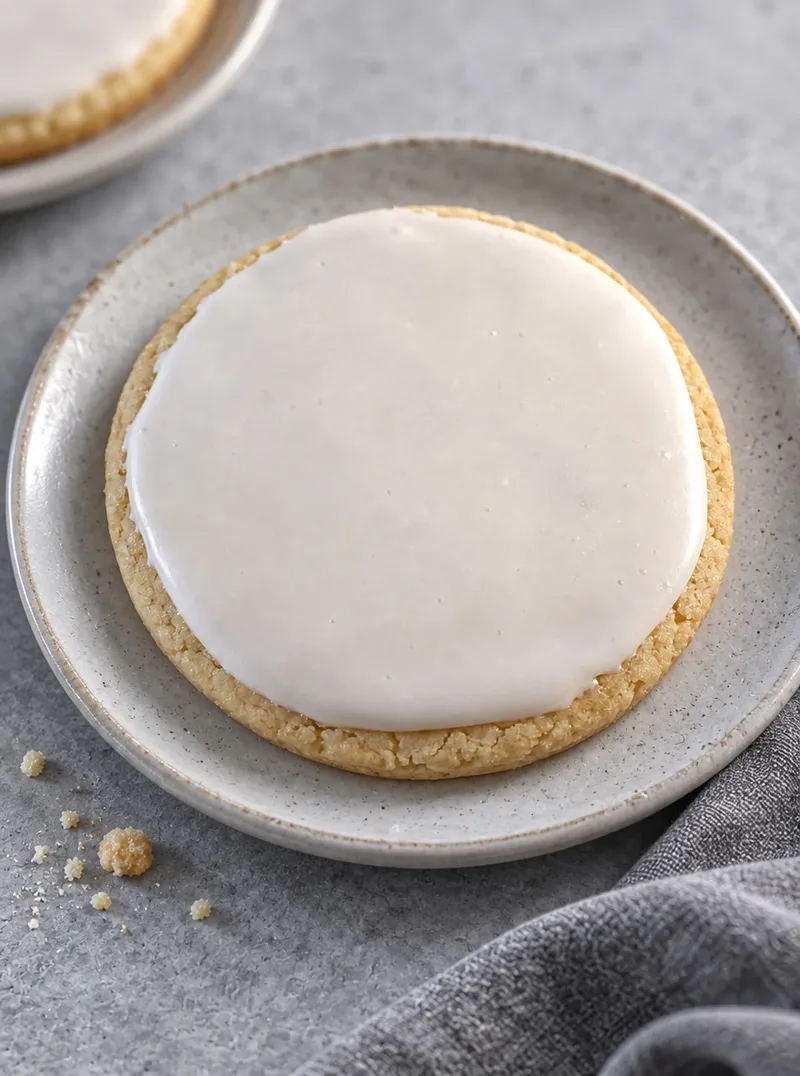
AI illustration and its Chefolio scene-edit example. The starting image was generated to illustrate mixed light; it is not a photograph from a lighting experiment. The output reconstructs the scene and can redraw cookie details. It does not demonstrate a white-balance slider, eyedropper correction, or measured color accuracy.
You can try it on a yellow photo:

No comments yet