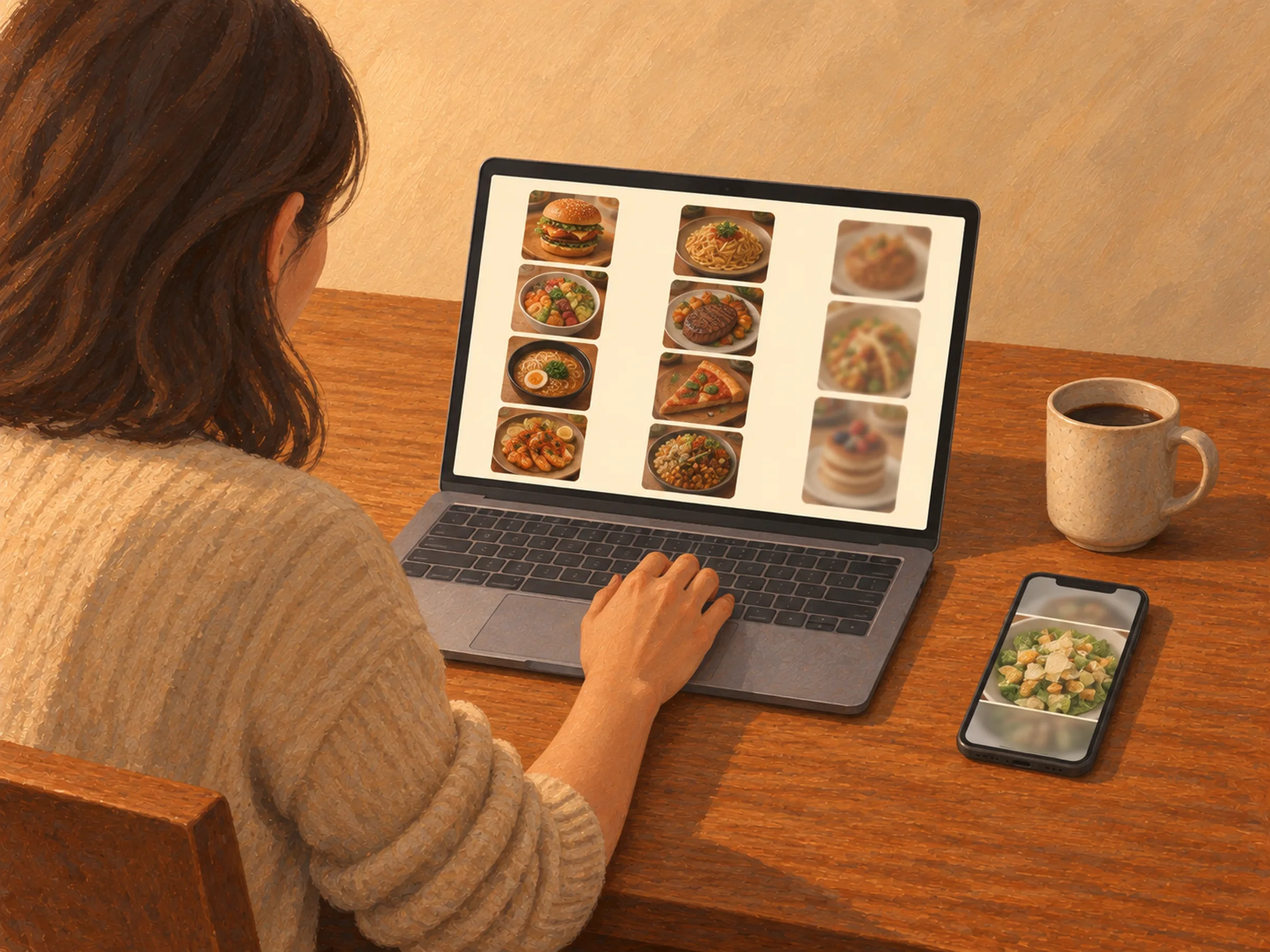
Sort restaurant client photos before editing: post the sharp, well-lit ones; clean up usable photos with distracting light or backgrounds; ask for a new photo when the dish is unclear. Before posting an AI edit, send the original and result to the client side by side and confirm that the food still matches what they serve.
A note from Chefolio: we make an app that edits food photos. Chefolio is designed to change lighting and backgrounds, but an AI edit can also change the food. We label our edits and check them against the source.
Shoot day was two weeks ago. Since then the special has changed twice, the owner has added a brunch menu, and at 4:52 p.m. you get a text with a screenshot of a Caesar salad and the words "can you post this tonight?"
If you manage social for restaurants, you know that text. Freelancers on r/SocialMediaManagers describe handling five, even nine, restaurant accounts at once. Over on r/SocialMediaMarketing, one asked the question that sums up the job: how do two content shoots a month cover a restaurant that runs new specials every week?
They don't. Between shoot days, you work with what the client sends. The job is making that material usable without it looking like a different restaurant's feed, and without misrepresenting the food.
Fix the intake first
Most bad client photos are bad before anyone edits them. A few rules, set once, save hours.
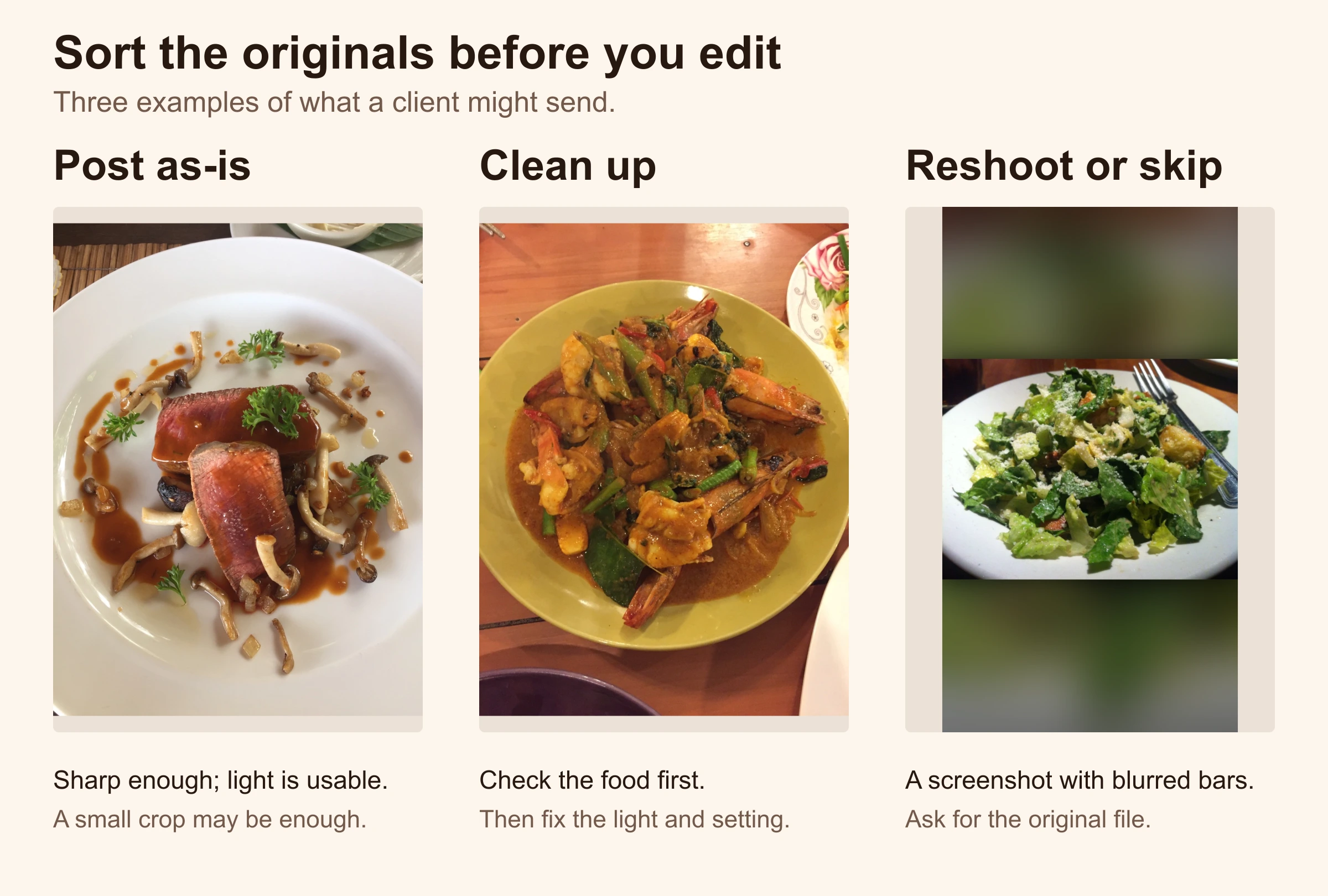
Ask for originals, not screenshots. That salad photo is a screenshot of a photo, complete with the blurry bars, and it has lost most of its resolution along the way. You can see it as the third example in the sorting section below. Show your clients how to share the original file from their phone's photo app, or better, set up one shared album per client that they can drop photos into straight from the camera roll.
Give each client a one-page cheat sheet. Keep it short enough to tape above the pass:
- Shoot by the window, not under the heat lamps
- Wipe the rim of the plate
- Flash off
- One photo from above, one from the side
- Send the original, never a screenshot
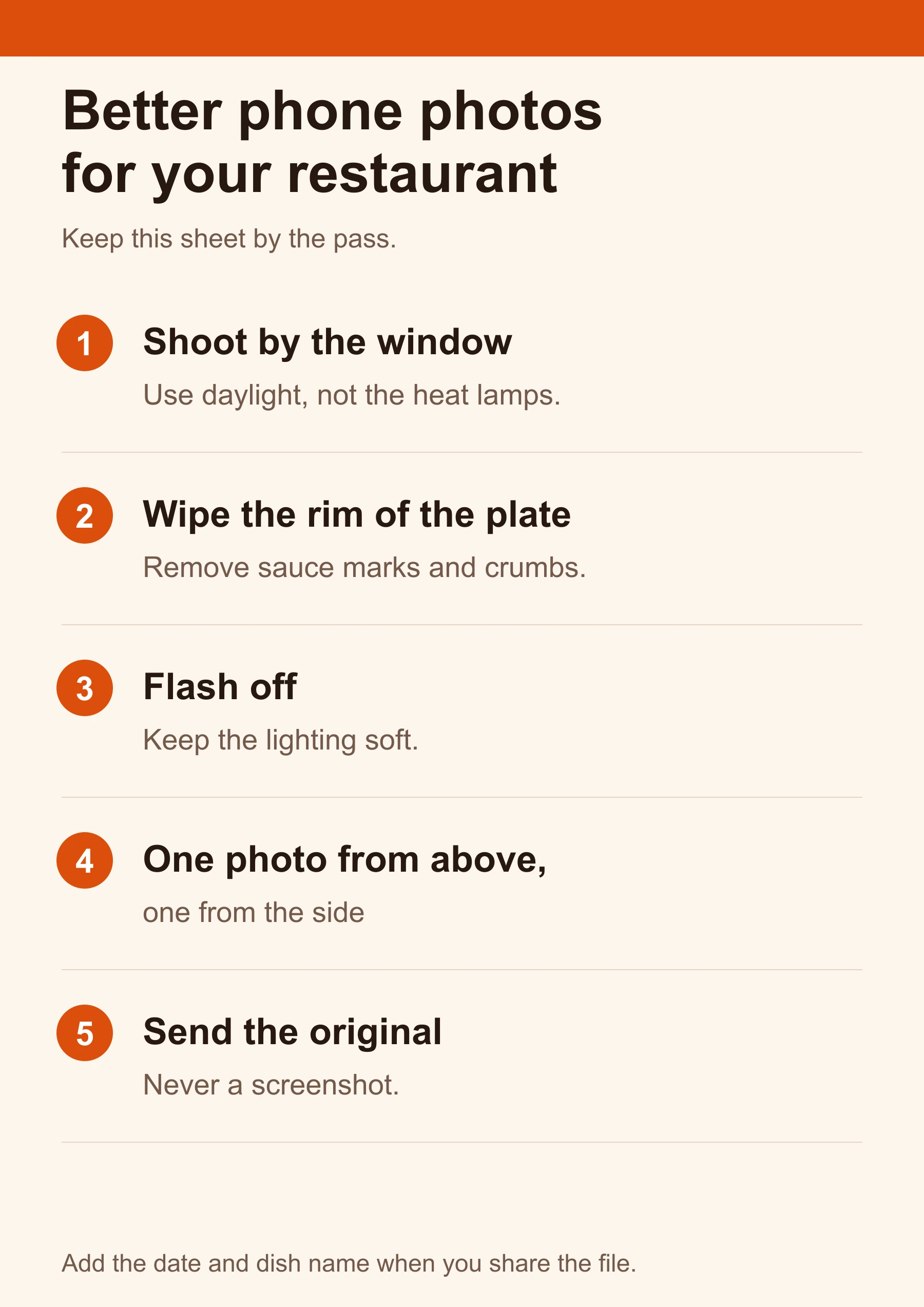
Agree on a naming habit. Even "date, dish name" in the album caption saves you from guessing whether that's the old burger or the new one.
Sort everything into three piles
When photos come in, triage them before you touch any of them.
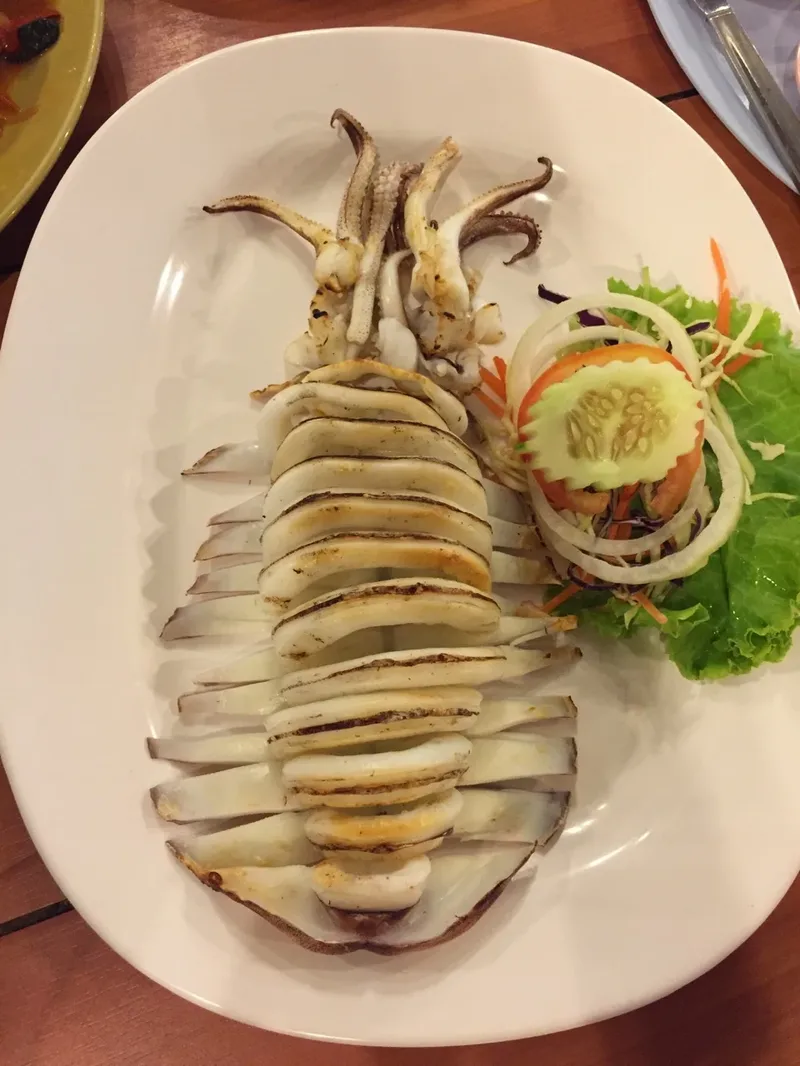
Post as-is. Decent light, clean table, sharp. A small crop and a brightness tweak and it's done.
Clean up. The food looks right, but the photo doesn't: dim light, a cluttered table, a condiment basket in the corner. This pile is where your time goes.
Reshoot or skip. Blurry, cut off, the wrong dish, or a screenshot too small to use. No edit saves these. Ask for another or post something else.
The middle pile is the interesting one. The food is correct, and the problem is everything around it.
Cleaning up the middle pile
You can work through it by hand in Lightroom or Canva. That's fine for a few photos, but it gets slow at scale.
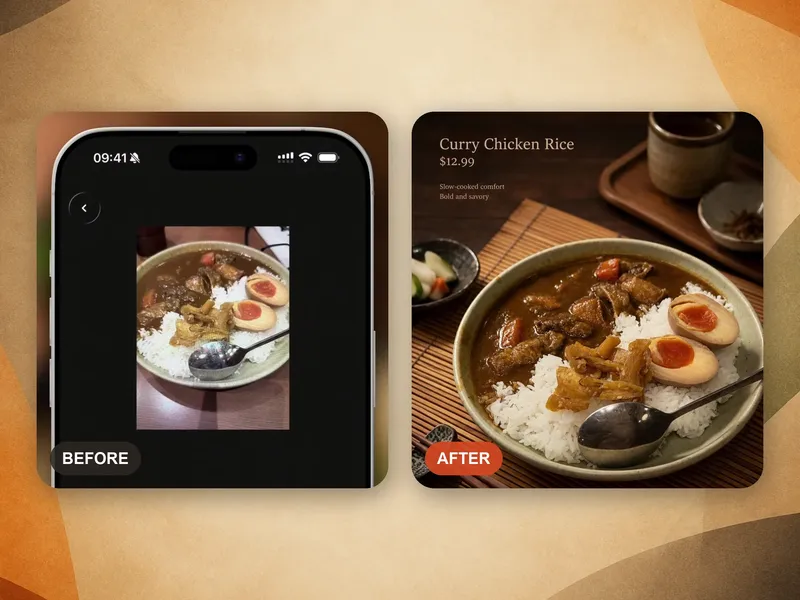
This is the job we built Chefolio for. Upload the photos (the web app takes up to 20 at a time), pick a built-in style, and it relights each dish and replaces the background around it. For specials, add the dish name and price and export sizes for the feed and Stories.
Two caveats. Chefolio doesn't save brand presets or keep client folders yet, so keep a short style note for each client, something like "Korean style, 4:5 for feed, no price on weekend posts," and use the same settings every time so the grid stays consistent. And compare every result with the original before it goes anywhere.
Let the client approve the food
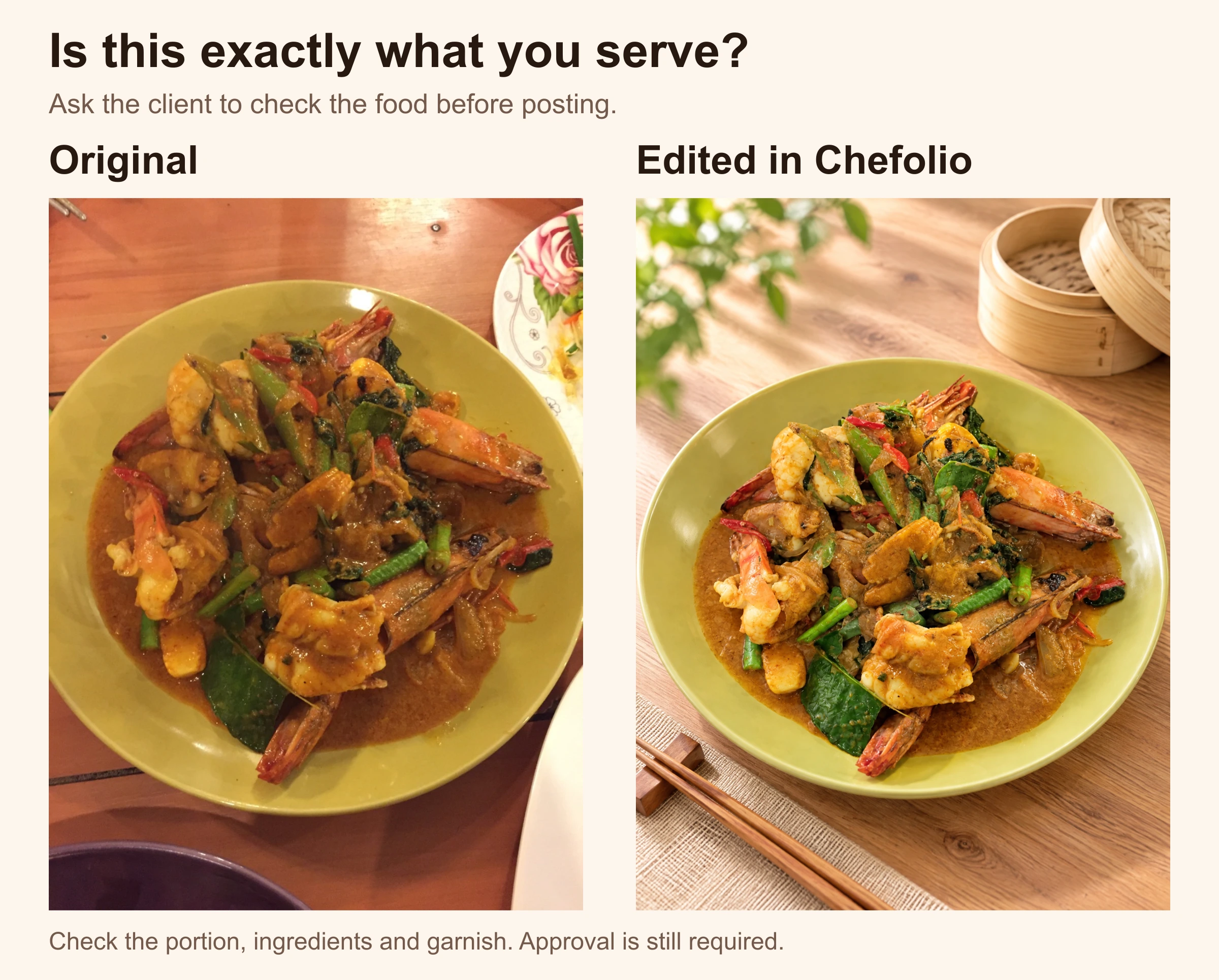
You know the brand. The client knows the dish. Before you post an edited photo, send the before and after side by side and ask one question: "Is this exactly what you serve?"
The owner will spot things you can't. The garnish that's changed since spring. The side that comes with dinner but not lunch. It takes them ten seconds, and it protects both of you.
Talk about AI edits before a customer does
Restaurant owners may be wary of AI food photos. Delivery listings need to show the food customers will receive, so your client needs to hear what your edits do and don't do.
A simple way to put it: "I edit the lighting and background, then compare the food with the original. If the dish changes, I reject the result." Follow that check for every image.
Be straight about platform labels too. Meta can add an "AI info" label to images edited with AI tools, and for edited (rather than generated) images it shows that label in the post's menu (Meta). Don't promise a client that a post won't be labeled. Agree with each client whether you'll add a short caption note, like "Photo edited, dish as served."
Keep delivery photos plain
If a photo is headed for DoorDash or Uber Eats, skip the styling extras. No text, no price, no props that suggest sides the order doesn't include. Those platforms want the item exactly as served, and they reject text on item photos. Our delivery app photo requirements guide has the details.
If you want to try the cleanup step on a client's photos:

No comments yet