
A note from Chefolio: we make an app that edits food photos. Chefolio is designed to change lighting and backgrounds, but an AI edit can also change the food. We label our edits and check them against the source.
Teaching example edition: the wording card below is a native design example, not an Instagram screenshot. Its lines describe hypothetical edits and should only be used when they match the image you post.
A useful starting point is this: if a customer would feel misled seeing the original beside the posted photo, explain the change. For a food business, that means being clear about the setting and making sure the food still represents the order.
This guide offers practical wording, not a legal rule for any specific jurisdiction. Platform requirements and advertising obligations vary, so check the rules that apply to your business and each channel you use.
When a note is useful
Edit | Practical approach |
|---|---|
Crop, straighten or modestly brighten | Usually no separate editing note; keep the image accurate |
Correct a color cast | Check against the bake so the correction does not recolor it |
Replace the background or surface | Describe the changed setting |
Relight or rebuild the scene with AI | Check the food and disclose the AI scene edit |
Change the bake's details, size or count | Choose another image for advertising the actual product |
Generate the bake from scratch | Label it as a concept, never as your own finished work |
Disclosure and accuracy are separate checks. A note cannot fix a photo that promises a cake you will not make. Our guide to editing your bake photos explains that distinction.
Lines you can copy
For a changed background, a straightforward caption is enough:
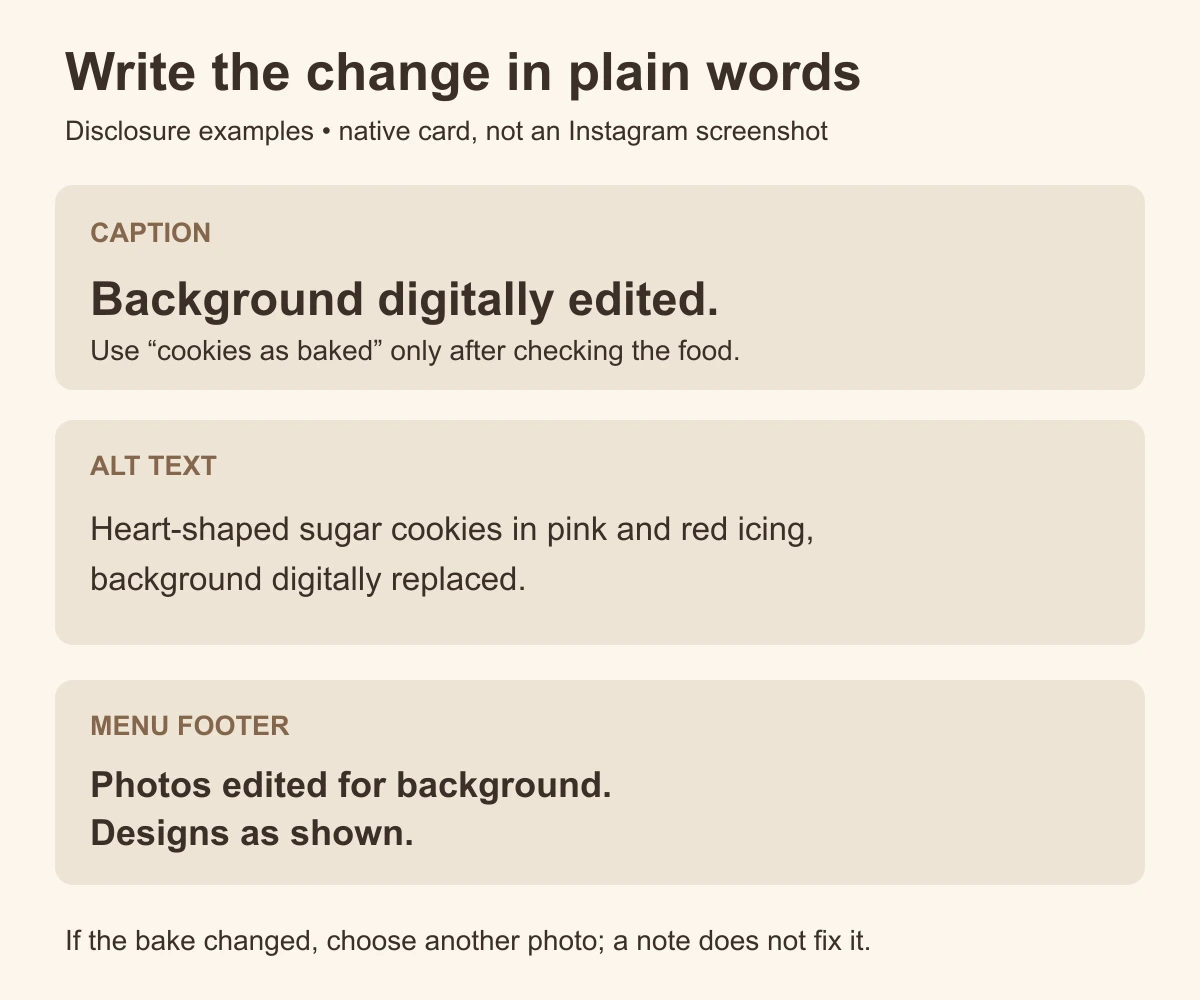
- "Background digitally edited."
- "Photo edited for light and background."
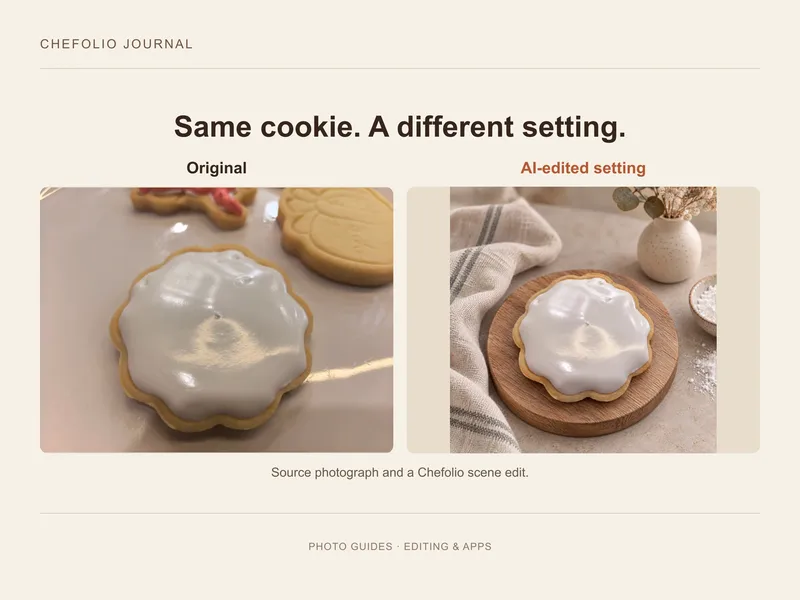
- "AI-edited setting; see the original bake in the next photo."
If you have compared the result with the actual bake and it still matches, you can add a more specific line such as "Background edited, cookies as baked." Avoid that wording if icing, decorations or count changed.
For a generated inspiration image, use a different description: "AI-generated design concept." That makes it clear the image is not a completed order.
Put the note where the image travels
Add the note near the image in the caption. For a menu or price list likely to be screenshotted, include a readable line on the image itself. A small footer can work, provided it survives the export and stays legible on a phone.
Alt text should describe the food first, then the relevant edit. For example: "Heart-shaped sugar cookies in pink and red icing, background digitally replaced." Change the description to match your actual photo; do not paste it onto a different cookie set.
For Instagram, prepare the post, find its accessibility or advanced settings, and look for Write alt text. Enter the description and check it before sharing. The route can vary by version and account. The card above shows example wording to adapt; it is not a picture of the app's controls.
What about Instagram's AI info?
Meta's published explanation of AI content labeling describes its approach. Check the current options in your account when posting, because labels, disclosure controls and their location can change.
Open the post's menu to review any available AI information, and use the platform's disclosure option when applicable. Where these options appear can differ between accounts and app versions.
Your own caption remains useful even when a platform adds a label. It can explain whether you changed the background, relit the scene or generated an entire concept, which a short platform label may not tell the viewer.
Review a Chefolio result before labeling it
Keep the source and compare it with the saved result. Look at the icing color, outlines, decorations, portion and item count, including any food added in the background. If the result no longer represents the bake, choose a different image.
If the food check passes, a line such as "AI-edited background" explains the scene change. Use the same description in your caption, alt text and menu footer where appropriate.
Try that workflow with a photo of your next batch:

No comments yet