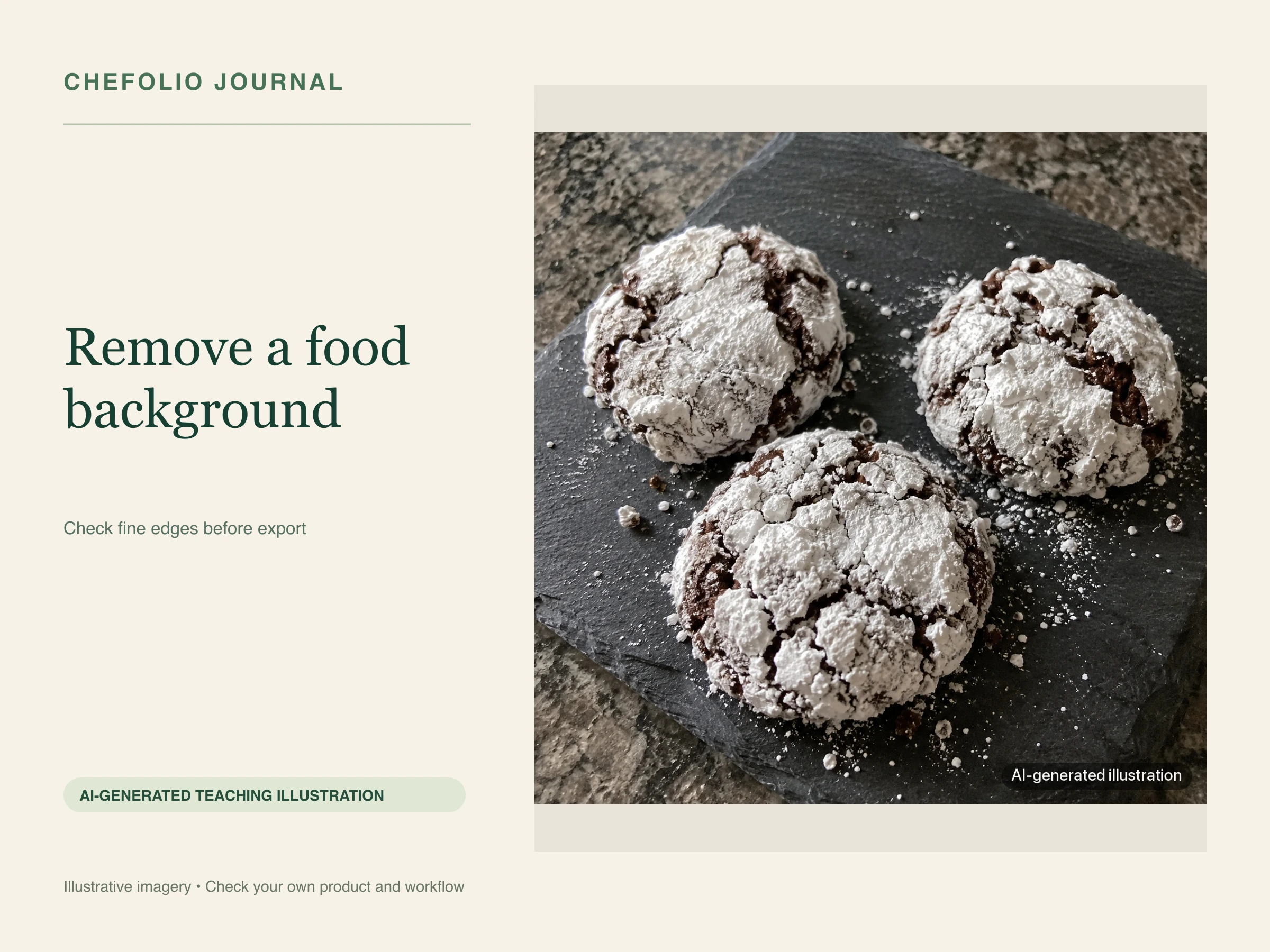
A note from Chefolio: we make an app that edits food photos. Chefolio is designed to change lighting and backgrounds, but an AI edit can also change the food. We label our edits and check them against the source.
Teaching example edition: the Finder and Chefolio screens below are actual captures. Layout shadows are illustrative, and the scene edit is an AI output. This is not a comparison test of every background remover.
Before you pay for anything, check the tools already on your phone or computer. A transparent cutout can be enough for a simple price list. A believable new setting is a different job, and either result needs checking before customers see it.
On an iPhone: touch and hold
In Photos, open the picture, then touch and hold the food until the subject outline appears. Choose Copy to paste the extracted subject into another app, or Share to send it on. Menu wording and supported devices can vary; Apple's subject-lifting guide explains the available options.
The Chefolio screenshots farther down show a different app. For Apple's subject-lifting feature, stick to the Photos steps above.
On a Mac: a quick action
- In Finder, select your image file.
- Control-click it and open Quick Actions.
- Choose Remove Background; if it is hidden, check the available quick actions.
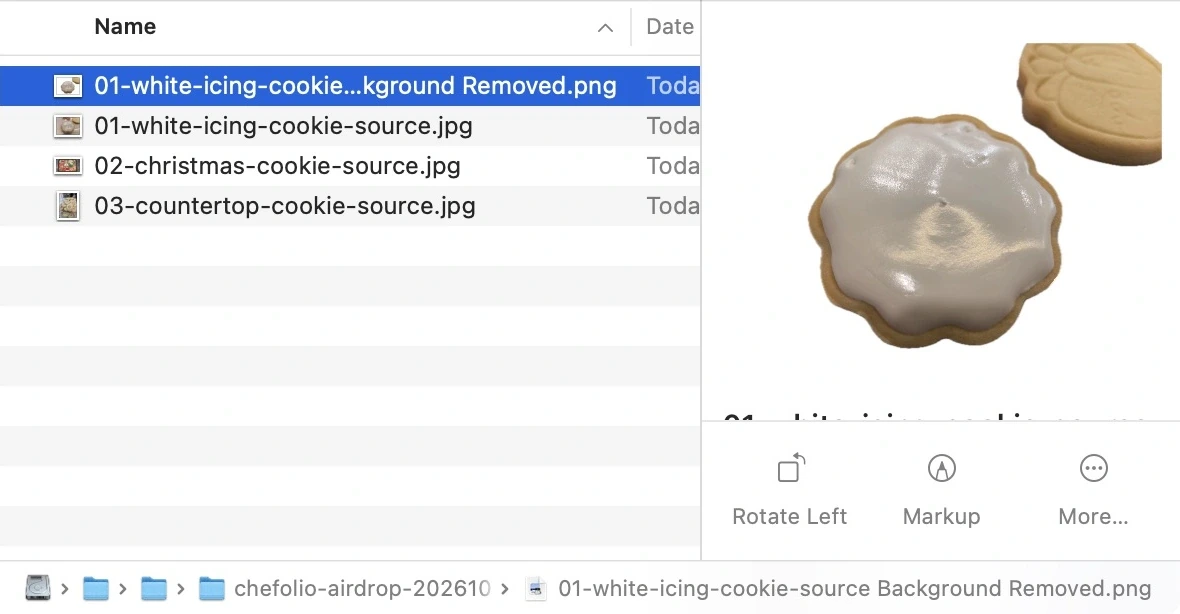
- Open the new PNG beside the source and check which subjects it retained.
See Apple's Finder quick-action guide for your version of macOS. The screenshot below shows the finished result, not the popup menu.
On the web: check the free allowance
Web tools can be convenient, but free download size, account requirements and commercial-use terms differ. Check the current pages for Canva, Adobe and remove.bg before building a business workflow around an allowance. A free preview is not necessarily a full-resolution file you may use commercially.
Check what the tool kept
Food can have fine edges, shiny surfaces, loose crumbs and transparent packaging. Look at those areas at full size. For a steaming drink or powdered cookie, compare the steam or loose powder with the source; do not assume it survived the extraction.
The sample cutouts here show another thing to check: both kept two cookies. If you meant to isolate only the white-iced cookie, the second one is still in the frame. Crop it out, or keep it on purpose.
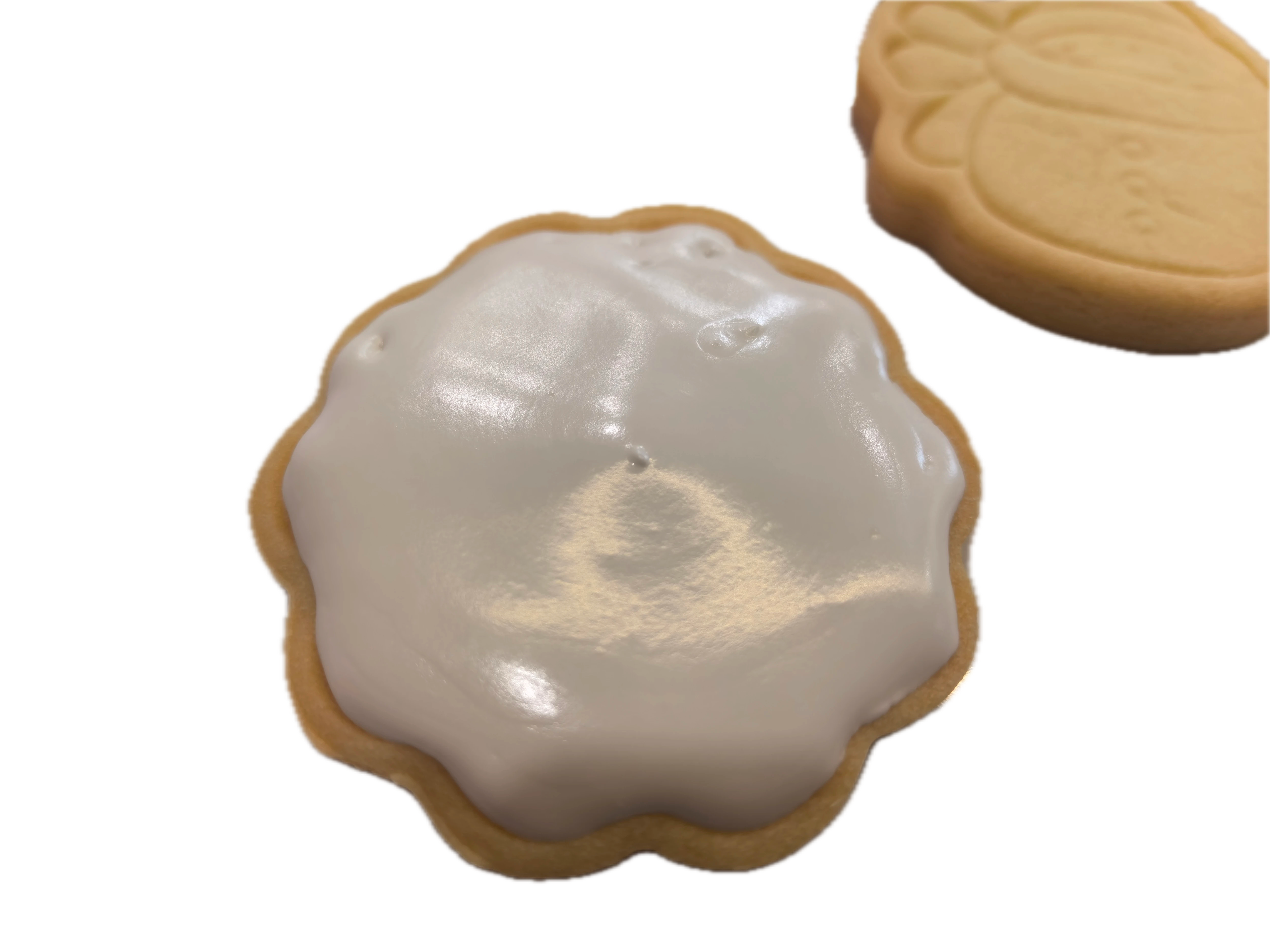
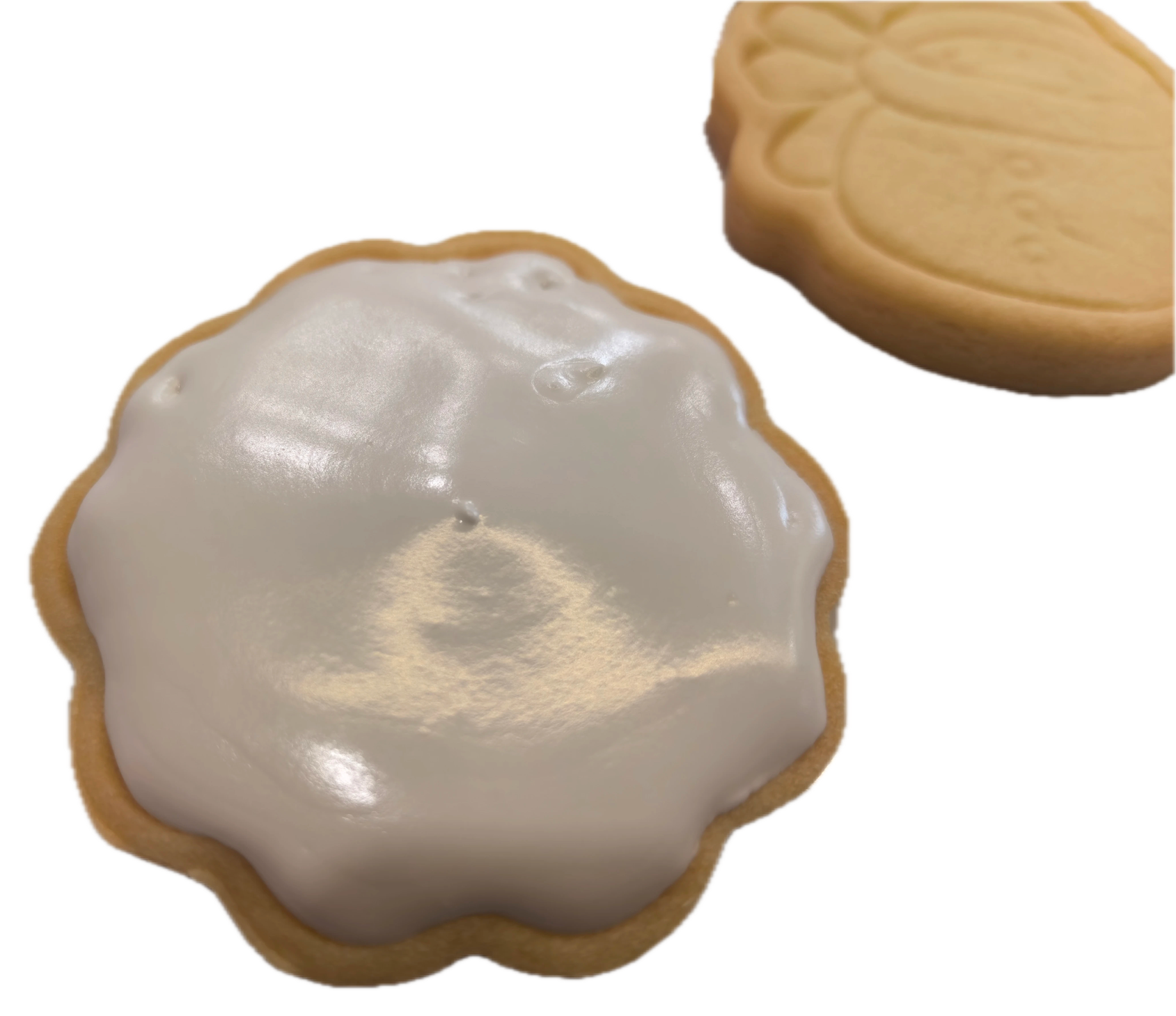
Two actual cutouts, shown on a neutral display background. Inspect the outline and retained subjects. These are not powdered-sugar or steam failure tests, and they do not establish which tool performs better.
What to put behind the cutout
For a price list, one plain color is often enough. Keep the same background throughout the menu and allow space for the item name and count. Our cookie price-list guide explains the layout.
A cutout may look pasted on when it has no contact shadow. The two layouts below use the same actual cutout. The shadow on the right is a built-in design effect; it isn't recovered from the original photo.
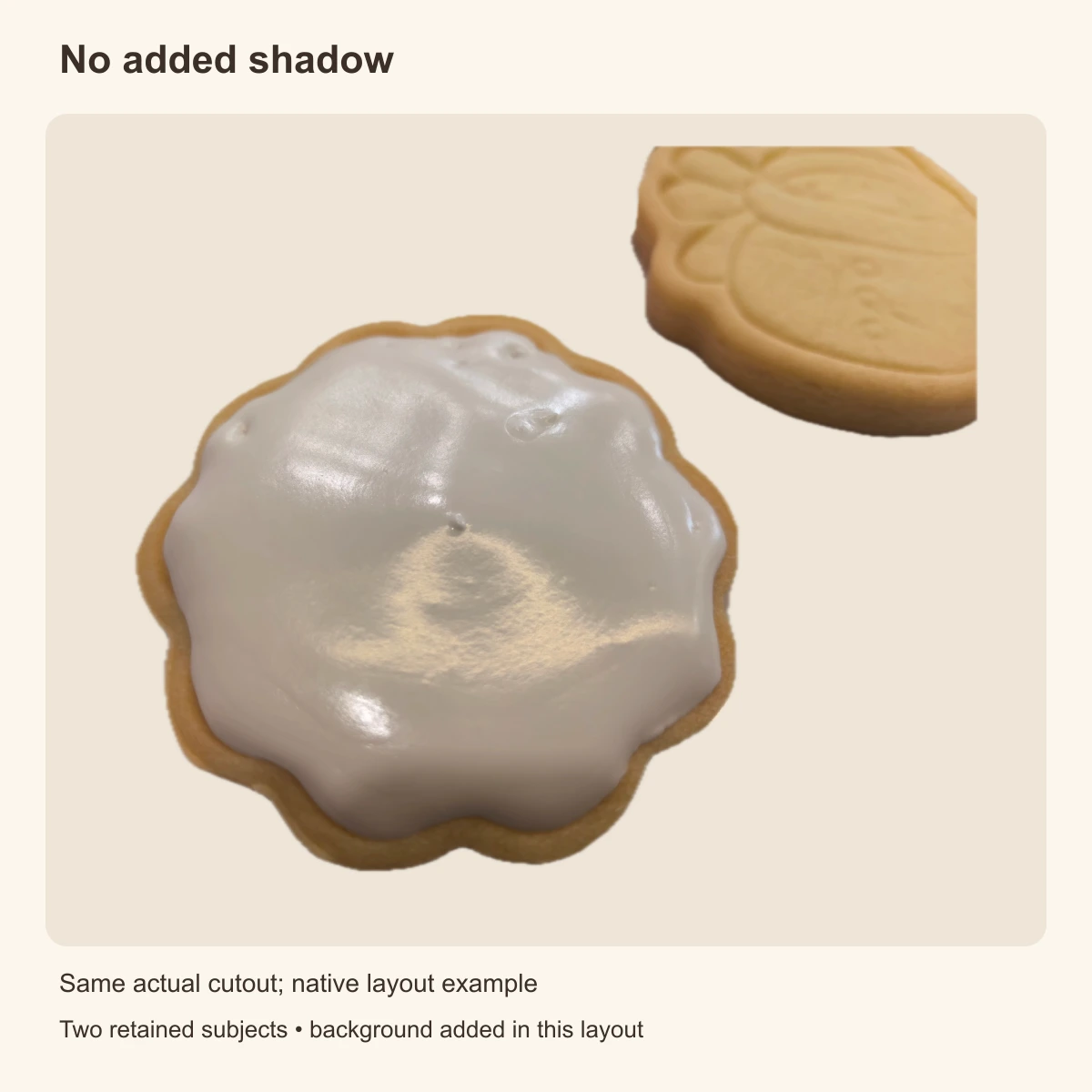
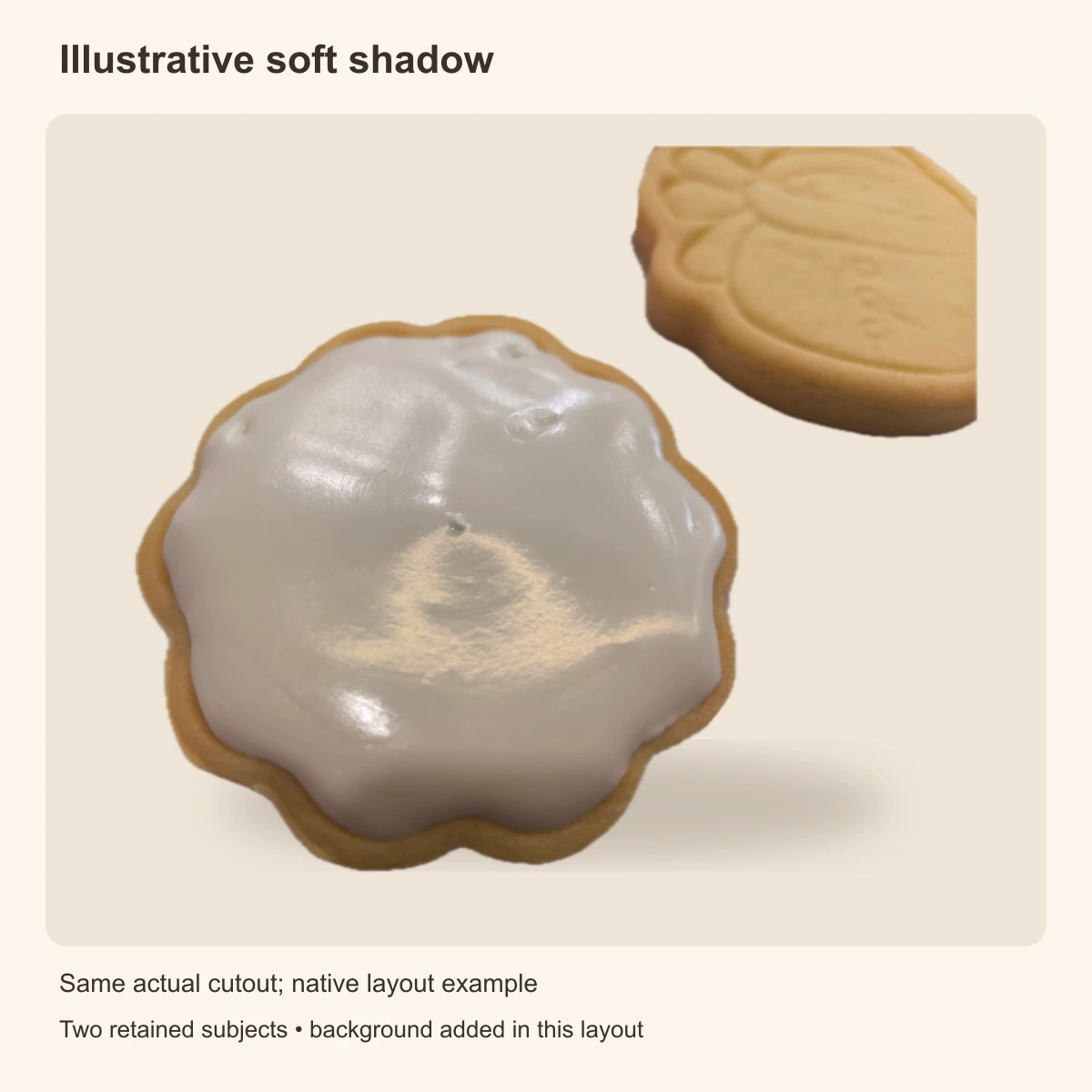
A layout demonstration using identical extracted subjects. The added soft shadow changes the design treatment; it does not recreate a measured light source.
Check a delivery platform's current photo rules before uploading a cutout. For Google Business Profile, keep your own photograph with modest edits and follow Google's photo guidance.
A cutout and an AI scene edit do different jobs
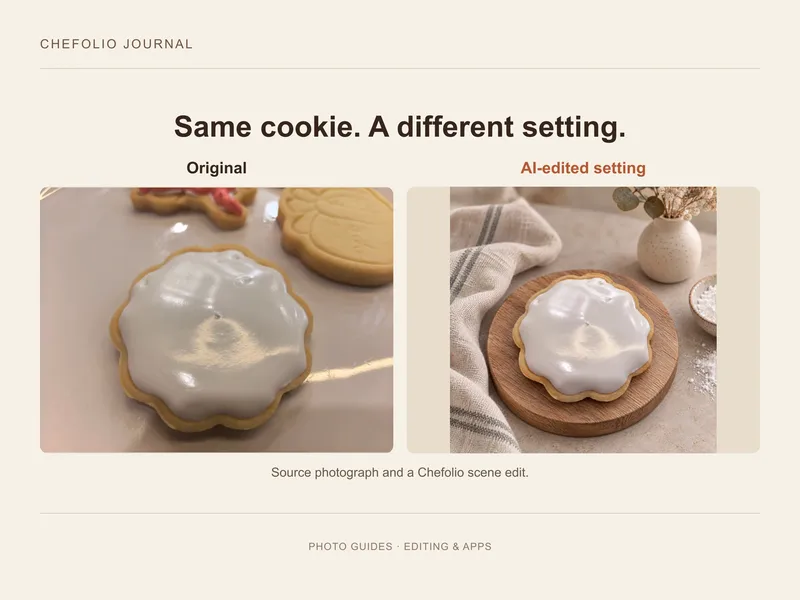
A cutout extracts pixels. A scene edit can rebuild the surface, light, props and composition. That can also introduce or change food, so a more polished result isn't automatically a suitable product photograph.
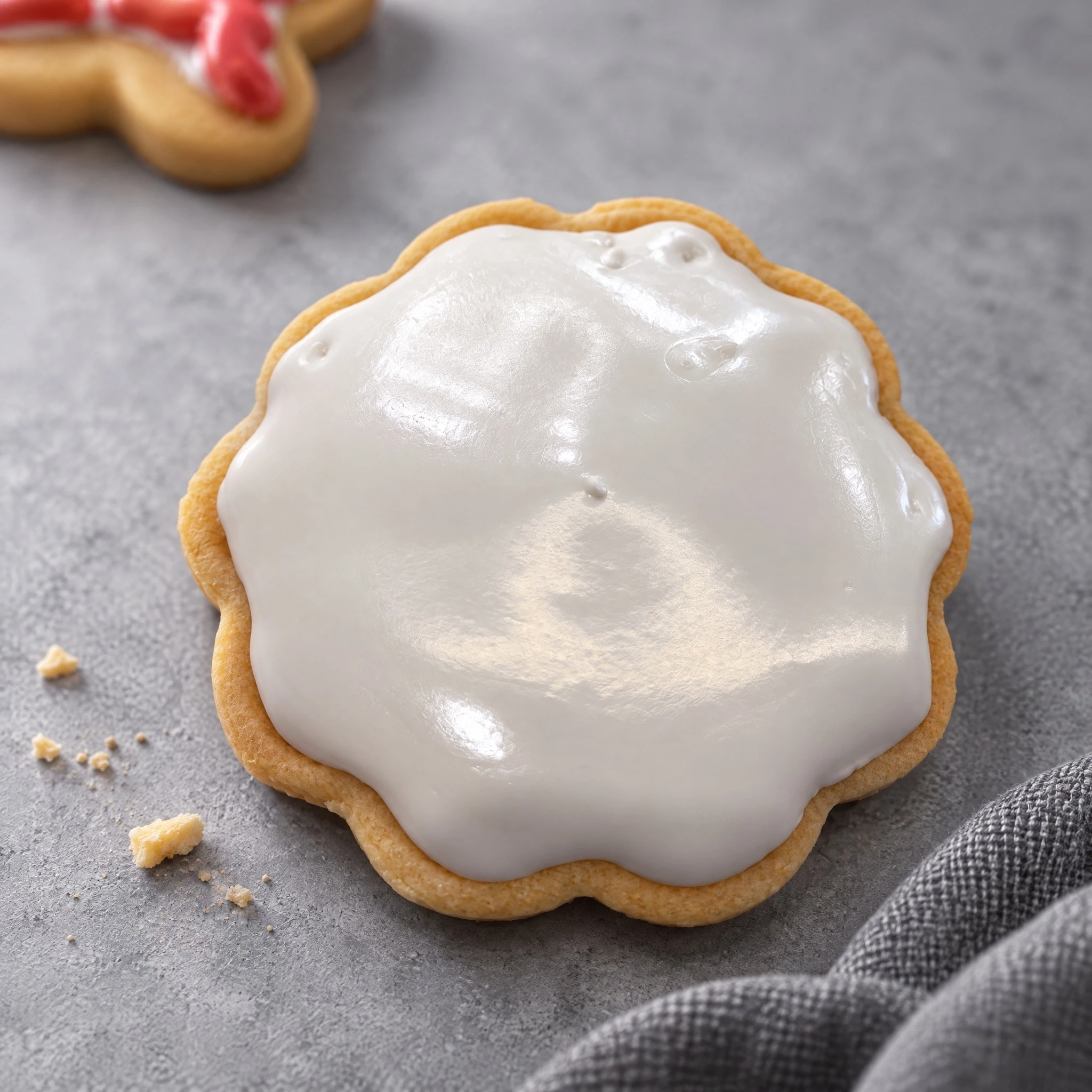
Actual cutout and actual Chefolio Bakery scene output from the cookie workflow. They have different framing and scene content; the AI output includes generated background elements. This is not a same-food-unchanged claim or a marble-lighting test.
If you only need a cutout, Chefolio's iPhone app offers that workflow too. In the real captures below, Original keeps the extraction without an added outline; White adds a white border. Check the additional retained cookie before saving.
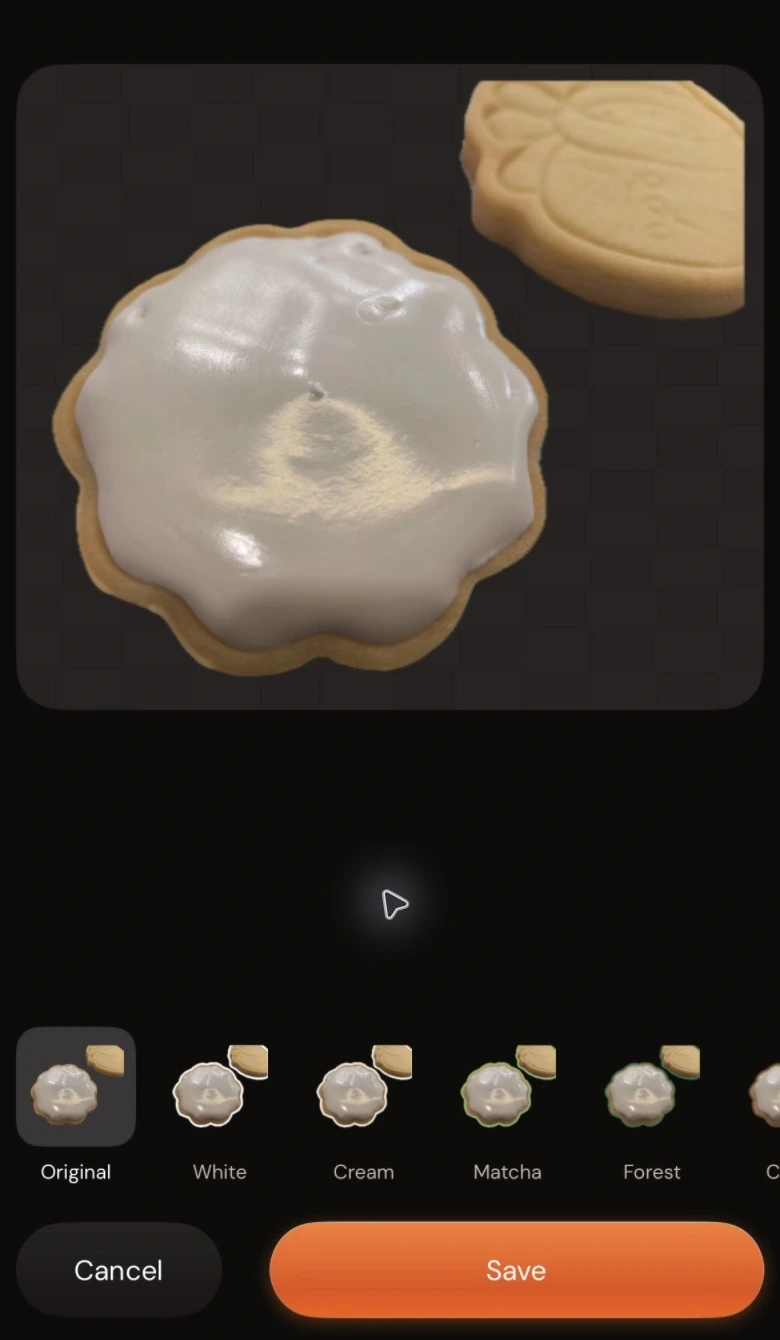
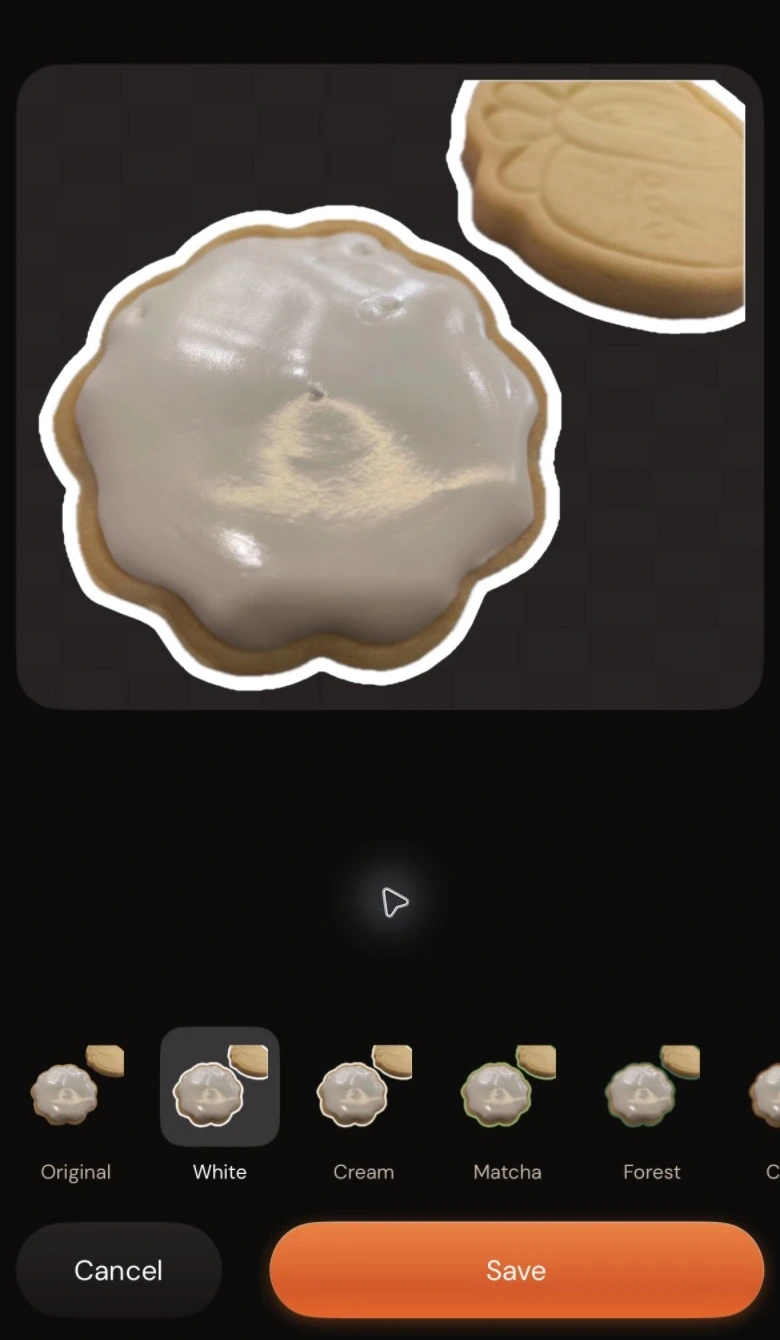
Actual iPhone app screenshots, cropped for readability. Smart Cutout removed the counter and retained two cookies. These controls belong to Chefolio, not Apple Photos.
Try the workflow on one of your own photos, compare the result with the source, and keep the version that represents what you sell:

No comments yet